
-
- Reseller
-
Products
Tailored Product Demo for Your Exact Needs
Explore how our solution delivers efficiency, control, and scalability.
Request a Demo
-
Solutions
Tailored Product Demo for Your Exact Needs
Explore how our solution delivers efficiency, control, and scalability.
Request a Demo
- Dashboard
- Features
- Pricing
Frequently Asked Questions
Centralized, Company-wide Microsoft 365 Email Signature

FAQ Menu
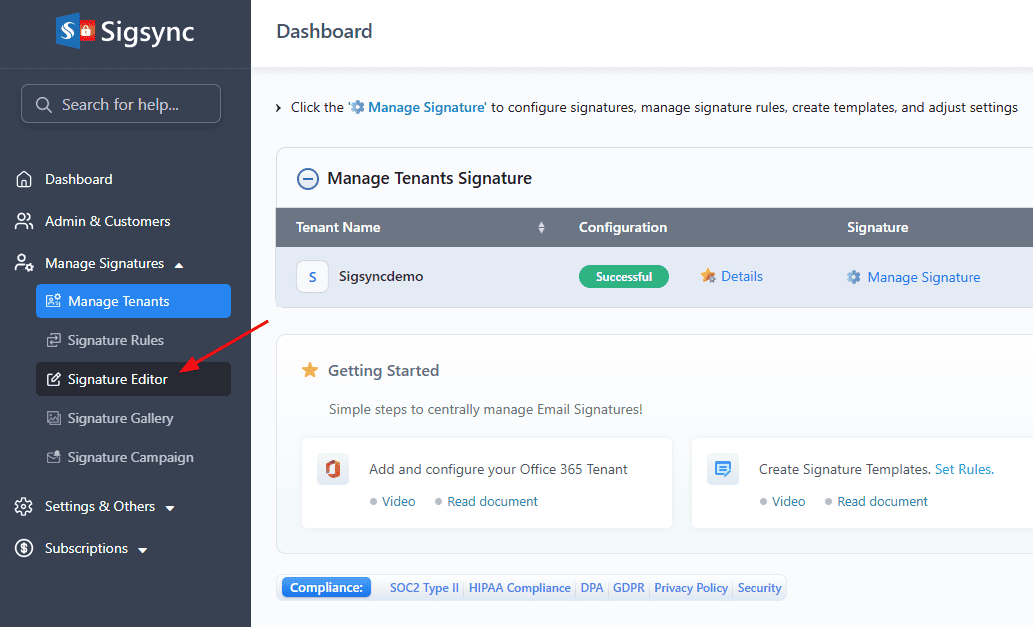
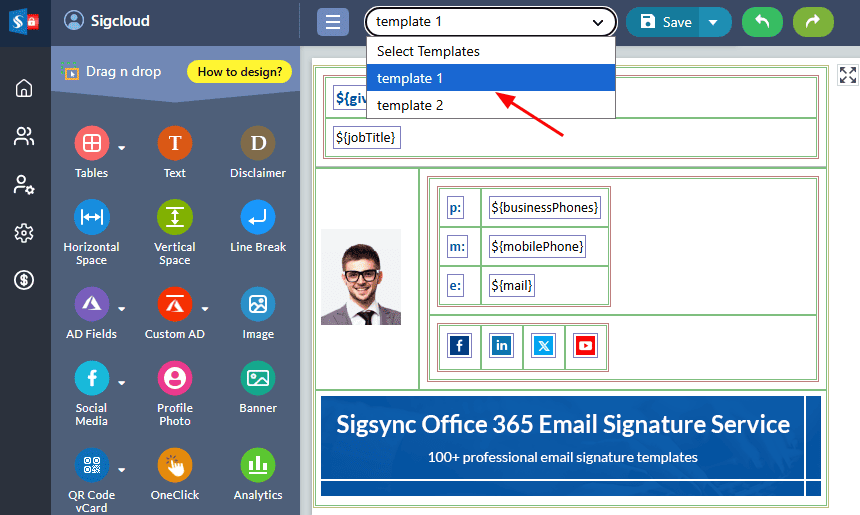
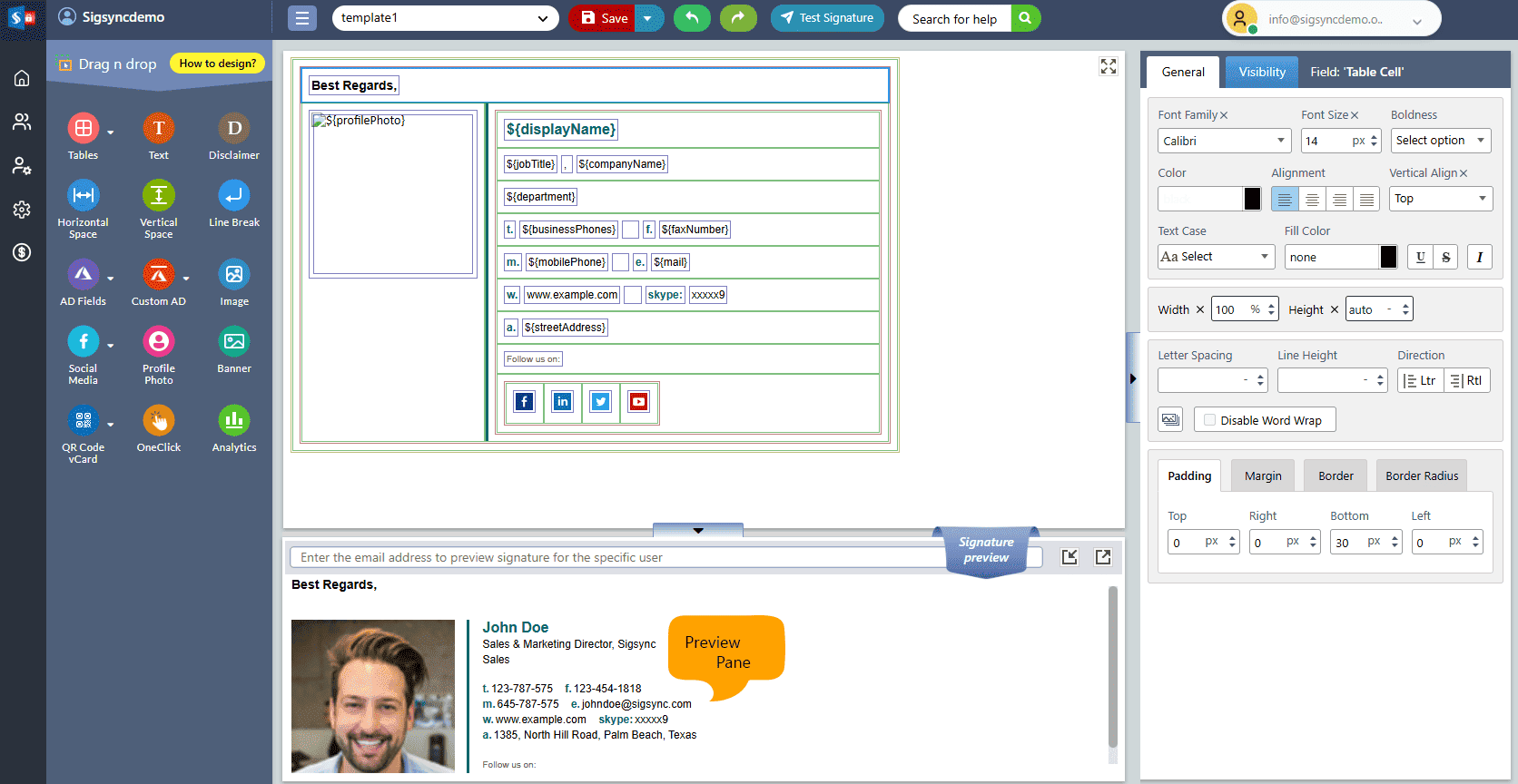
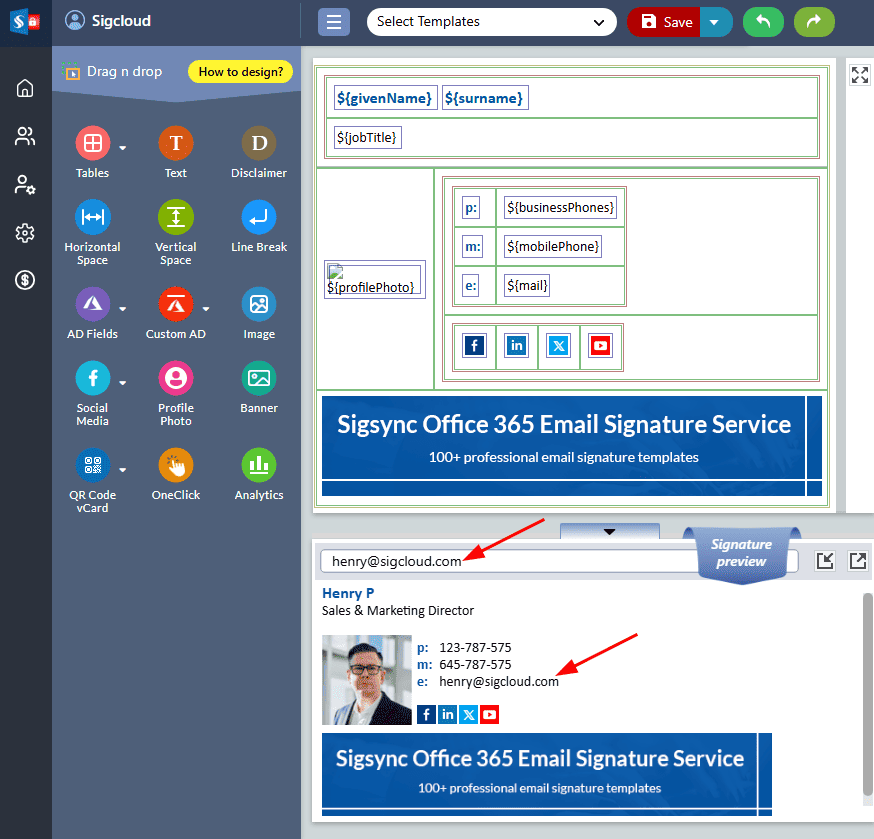
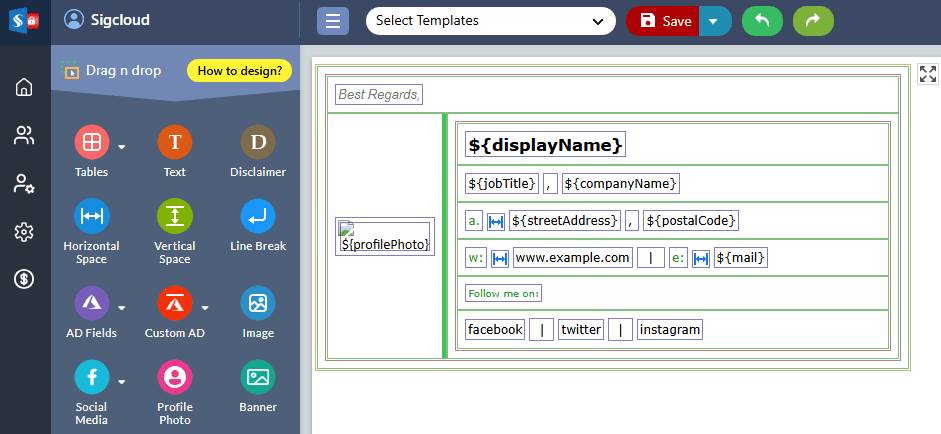
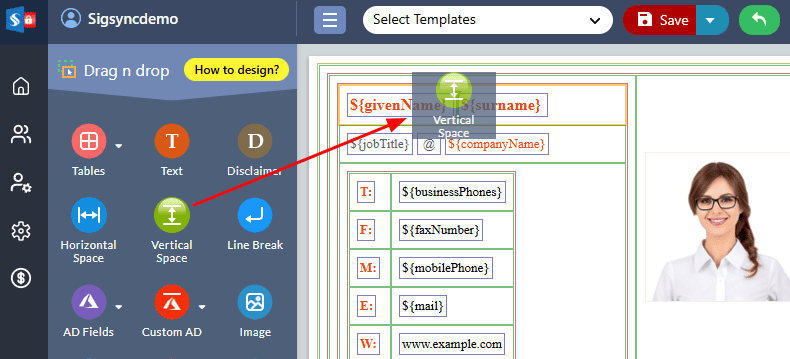
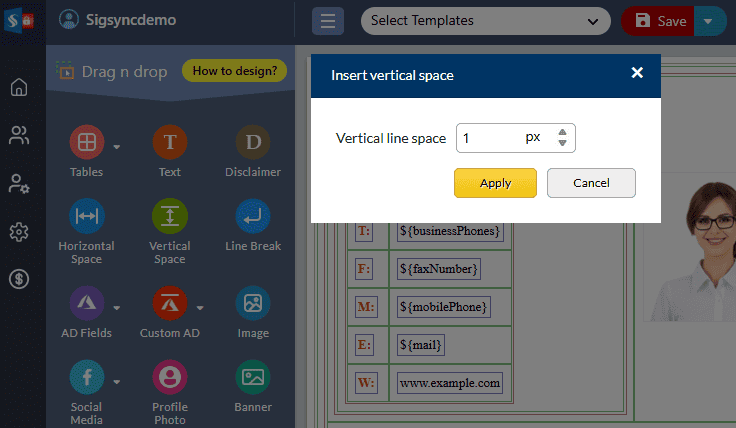
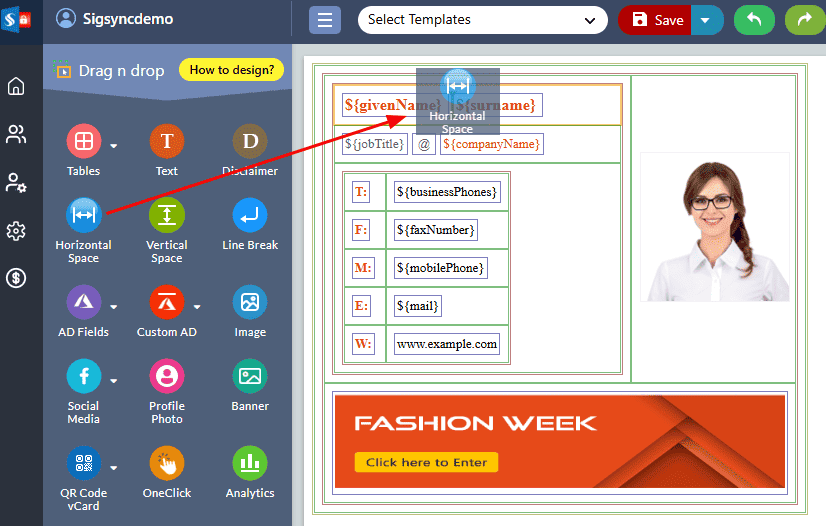
FAQs - Signature Editor




Experience Smarter Email Signatures with a
Free Sigsync Demo
Sigsync email signature service provides effortless, centralized signature management for Office 365 and Exchange.
Our team can assist you in quickly setting up company-wide signatures. Request a free on-demand demo to see
how Sigsync can simplify your email signature management process.