

Enable Signature in Sent Items Folder
If you have configured email signatures in server mode, by default, emails stored in your Sent Items folder do not show the actual signature that your recipients receive. This happens because Sigsync applies signatures on the fly during mail flow, which means signatures are visible to recipients but not automatically saved to your Sent Items folder.
However, with Sigsync’s Sent Items Signature feature, you can enable signatures to be added to the emails in your Sent Items folder so that you can view the signature exactly as it appears to your recipients. This is especially useful for compliance, auditing, and verification purposes.
Click here to know the working of the Sent Items Signature in Sigsync email azure service.
Steps to Enable Signatures in the Sent Items Folder
- Login to the Sigsync Dashboard.
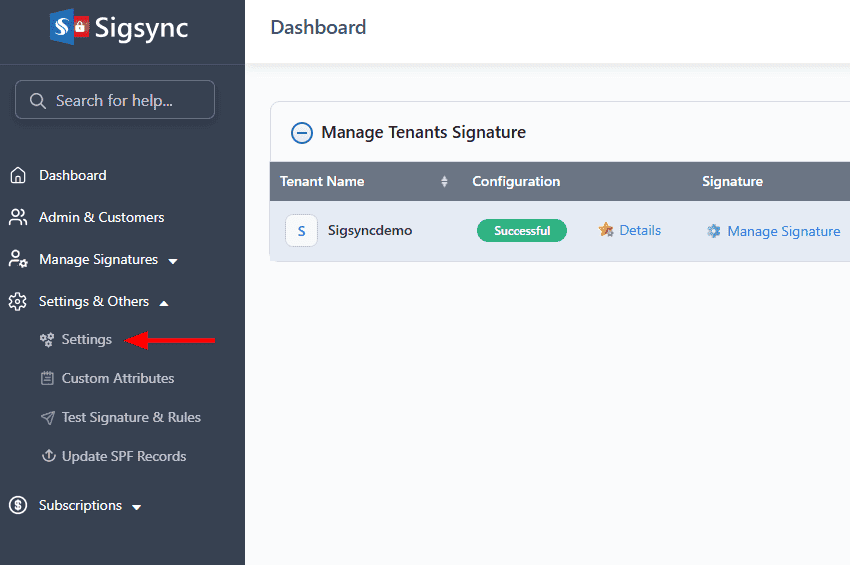
- Go to ‘Settings & Others’, then click on the ‘Settings’ tab.
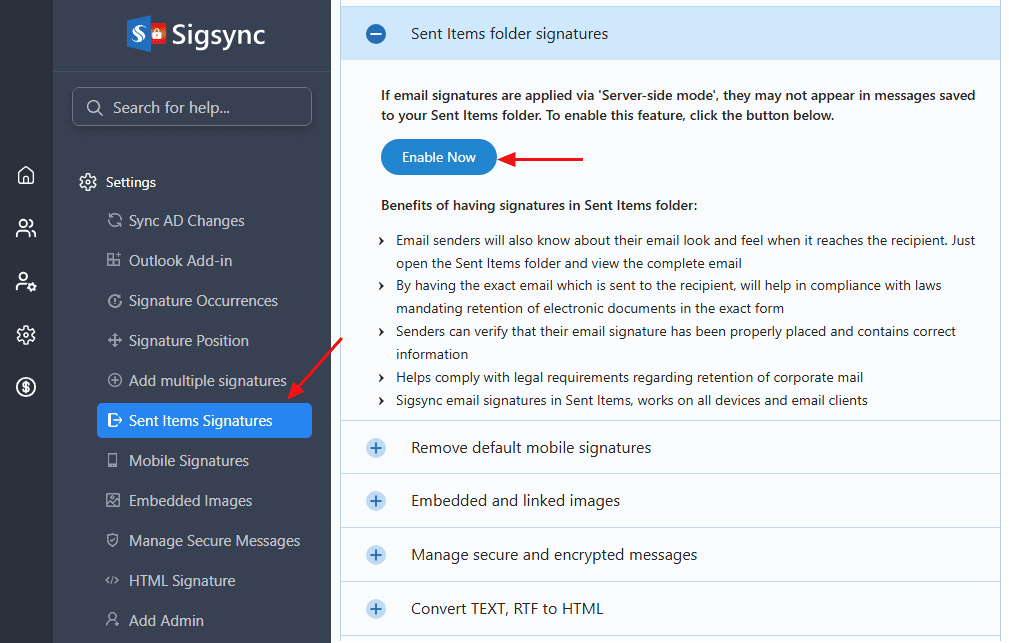
- Navigate to the ‘Sent Items Signatures’ section, then click the ‘Enable now’ button as highlighted in the screenshot below.
Advantages of Having Email Signatures in Users Sent Items Folder
- Allows email senders to see exactly how their email appears to recipients, including the signature, by viewing the Sent Items folder.
- Without having this feature enabled, your sent email content will not have signatures which may include disclaimers. This will be an issue when you require a copy of email for compliance with laws mandating the preservation of computerized documents in the specific form.
- Enables senders to verify that the email signature is correctly placed and contains accurate information.
- Supports legal and compliance requirements related to corporate email retention.
- Works across all devices and email clients, ensuring consistent visibility of Sigsync email signatures.
Useful Links: