
-
- Reseller
-
Products
Tailored Product Demo for Your Exact Needs
Explore how our solution delivers efficiency, control, and scalability.
Request a Demo
-
Solutions
Tailored Product Demo for Your Exact Needs
Explore how our solution delivers efficiency, control, and scalability.
Request a Demo
- Dashboard
- Features
- Pricing
Signature Based On Keywords
Sigsync Office 365 Email Signature Software allows administrators to create signature rules that add or exclude email signatures based on predefined keywords in the email subject or body. This enables controlled use of language-specific, department-specific, regional, and promotional signatures, while also excluding signatures from internal or confidential emails.
Administrators can define keyword conditions for the email subject, body, or both. Based on these rules, signatures are applied only when relevant keywords are present or excluded when specific conditions are met. This ensures accurate, context-aware signature placement without unnecessary signatures in replies, system-generated messages, or sensitive communications.
Use Cases for Applying Signatures with Keywords
Keyword-based rules give administrators precise control over when and how email signatures are applied. Keywords are manually defined and mapped to specific signature templates. When these keywords appear in the email subject or body, the assigned signature is applied or excluded. This approach supports consistent branding while accommodating different languages, departments, regions, and communication scenarios.
Below are the use cases where keywords can be configured to ensure the correct signatures are applied.
Apply Signatures Based on Sender Language
In organizations with users from different countries, administrators can create rules using language-specific keywords and assign the correct signature templates. When a sender includes one of these keywords in the email subject or body, the matching language signature is applied.
Example:
Rule keywords: FR, Français, France
Result: French signature is applied
Rule keywords: ES, Español, Spain
Result: Spanish signature is applied
This ensures the sender’s signature matches the language used in the email without relying on automatic language detection.
Differentiate Internal and External Communication
Administrators can define keywords that identify internal communication and exclude signatures from those emails. Separate rules can be created to apply branded signatures only to external, customer-facing messages.
Example:
Internal keywords: internal, team, update
Result: No signature applied
External keywords: client, customer, partner
Result: Branded signature applied
Apply Department-Specific Signatures
Different departments require different signature templates. Administrators can assign department-specific signatures by defining keywords related to each department.
Example:
Keywords: pricing, quote, deal
Result: Sales signature applied
Keywords: ticket, issue, support
Result: Support signature applied
Keywords: recruitment, policy
Result: HR signature applied
Control Marketing and Campaign Signatures
Marketing signatures such as banners or promotional messages should only appear in campaign-related emails. By defining campaign-specific keywords, administrators can control when these signatures are applied.
Example:
Keywords: webinar, promotion, campaign name
Result: Marketing signature applied
No campaign keyword present
Result: Standard business signature applied
Exclude Signatures from Confidential Communication
For legal, compliance, or confidential emails, administrators can define sensitive keywords that prevent signatures from being added.
Example:
Keywords: confidential, legal notice, compliance
Result: No signature applied
Apply Region-Specific Signatures
Organizations operating in multiple regions may require different contact details or legal disclaimers. Administrators can define region-based keywords and assign the appropriate regional signature templates.
Example:
Keywords: EU, Europe
Result: EU signature with GDPR disclaimer applied
Keywords: US, United States
Result: US signature with local contact details applied
Avoid Signatures in Replies and Forwarded Emails
To keep email conversations clean and readable, administrators can create rules that exclude signatures from replies and forwarded messages.
Example:
Subject contains RE: or FW:
Result: No signature applied
Set Keyword conditions
You can set keyword conditions in two ways. Navigate to the sections below for detailed instructions:
Add Signature – based on keywords:
You can set specific keywords to add signatures when they are detected in the email body, email subject, both email subject and body, or either email subject or body.
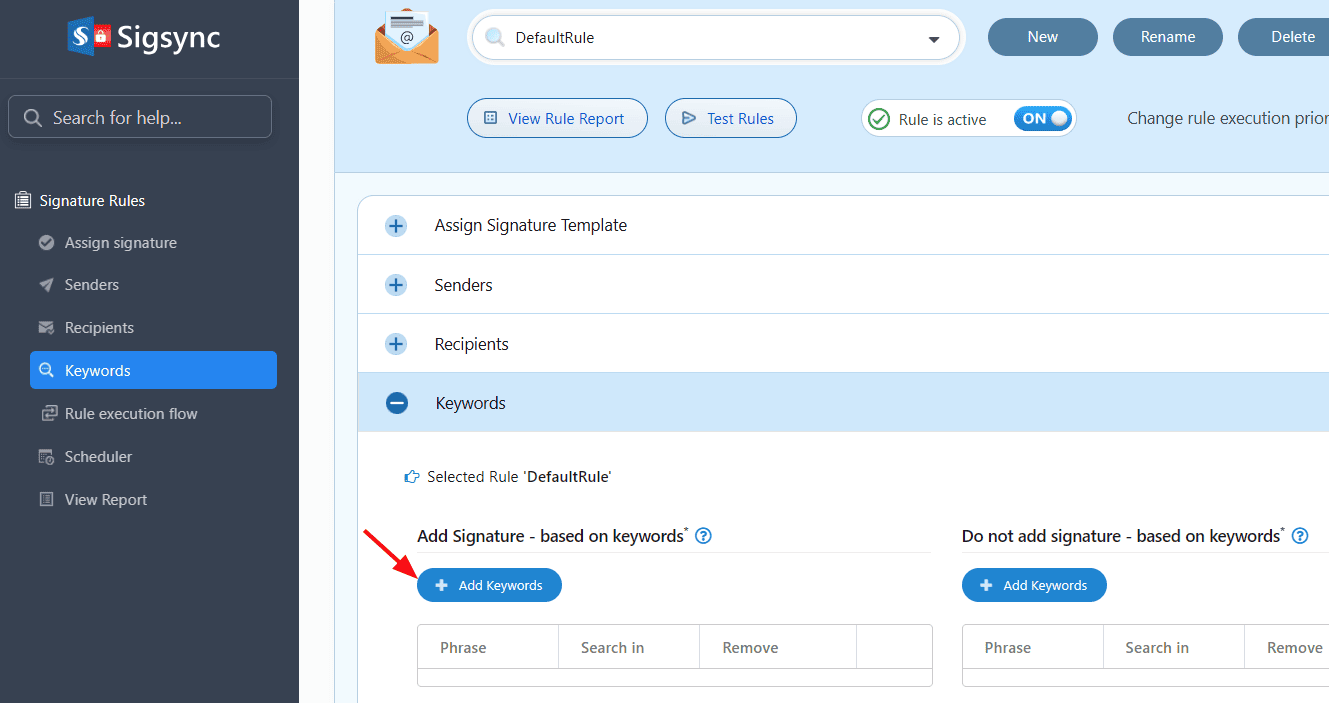
- Click the ‘Keywords’ tab on the ‘Signature Rules’ page. Under the ‘Add Signature – based on keywords’ section, click the ‘+ Add Keywords’ button.
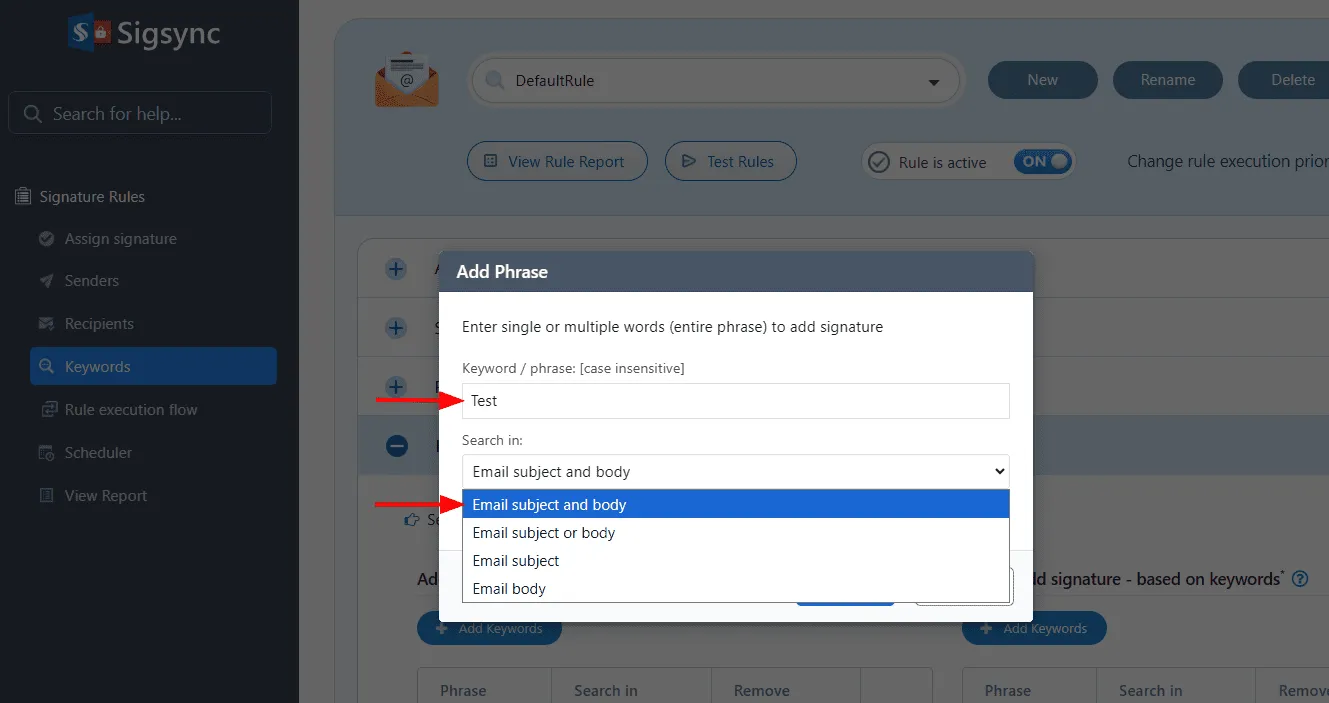
- Enter the keyword or phrase and select where it should be detected under ‘Search in’ (Email Subject and Body, Email Subject or Body, Email Subject only, or Email Body only)
- Check the box ‘Remove this phrase from email subject and body’ if you want the keyword or phrase to be automatically removed from the email after the signature is applied. Leave it unchecked if you want the keyword to remain in the email.
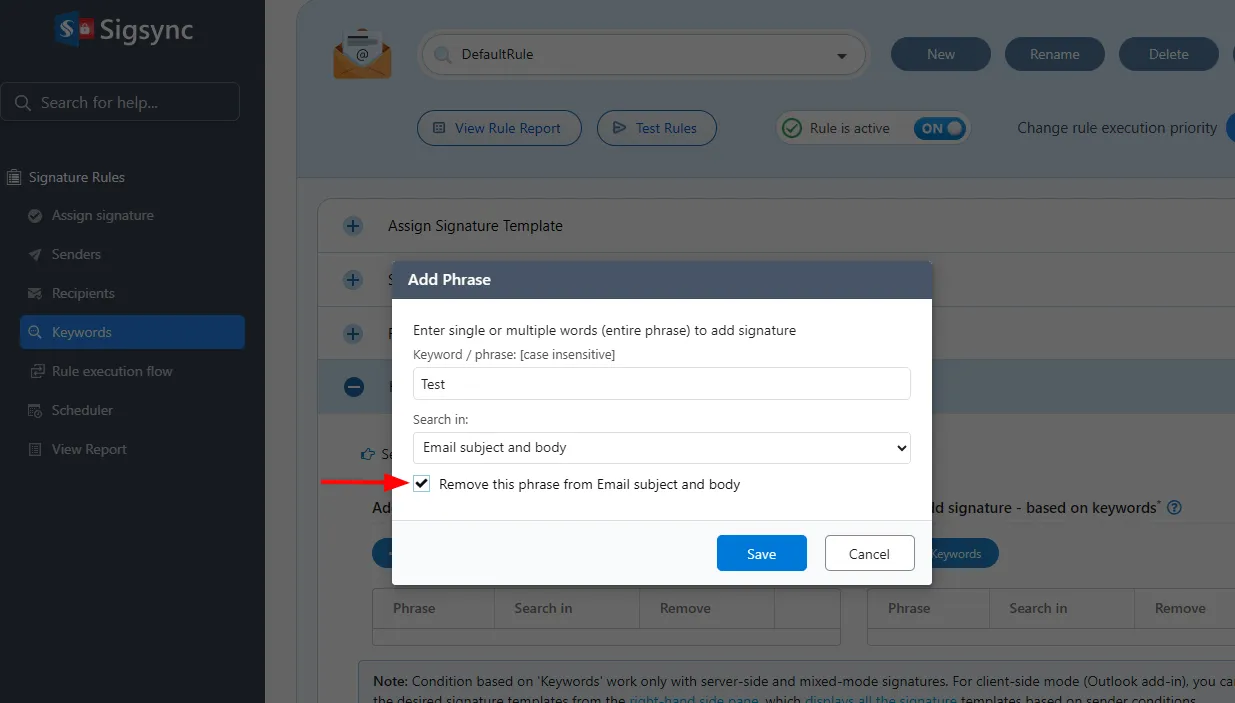
- Save the rule changes.
Do Not Add Signature – Based on Keywords
You can set specific keywords to prevent signatures from being added when they are detected in the email body, email subject, both email subject and body, or either email subject or body.
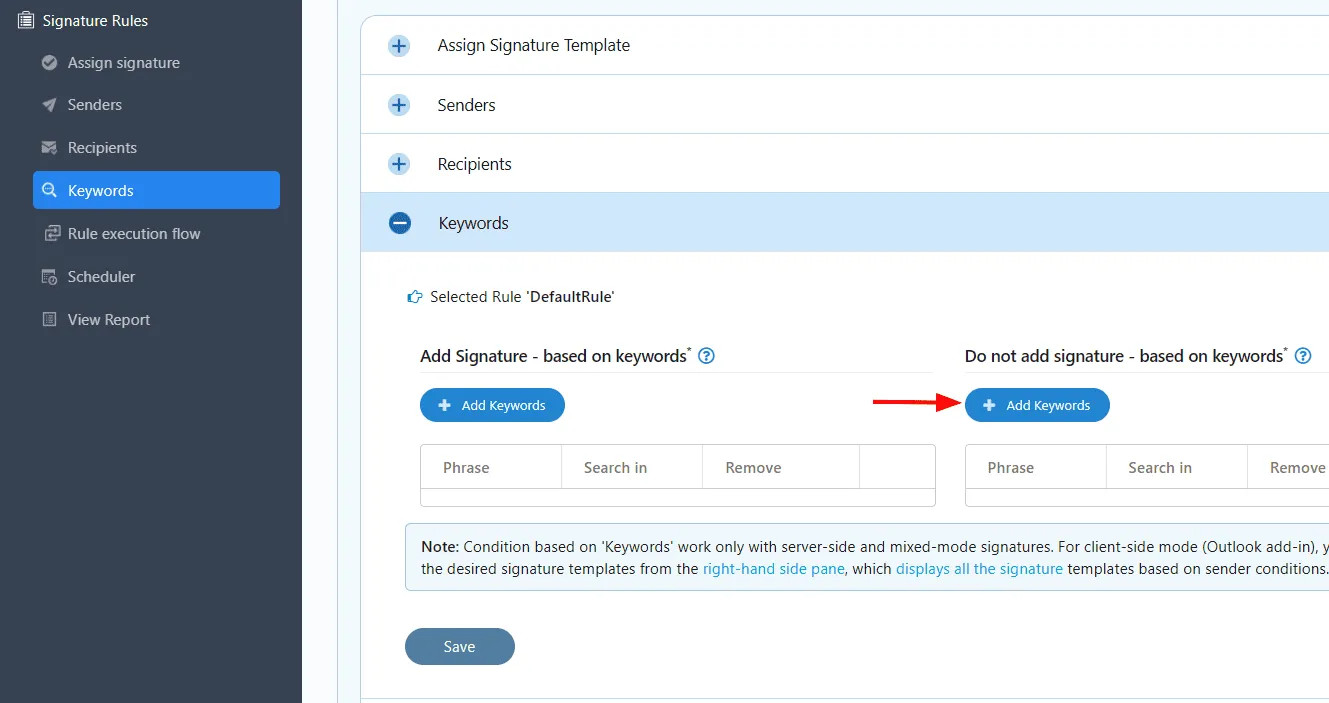
- Click the ‘+ Add Keywords’ button under the ‘Do not add signature – based on keywords’ section.
- Enter the Keyword/phrase and select the required option under ‘Search in’.
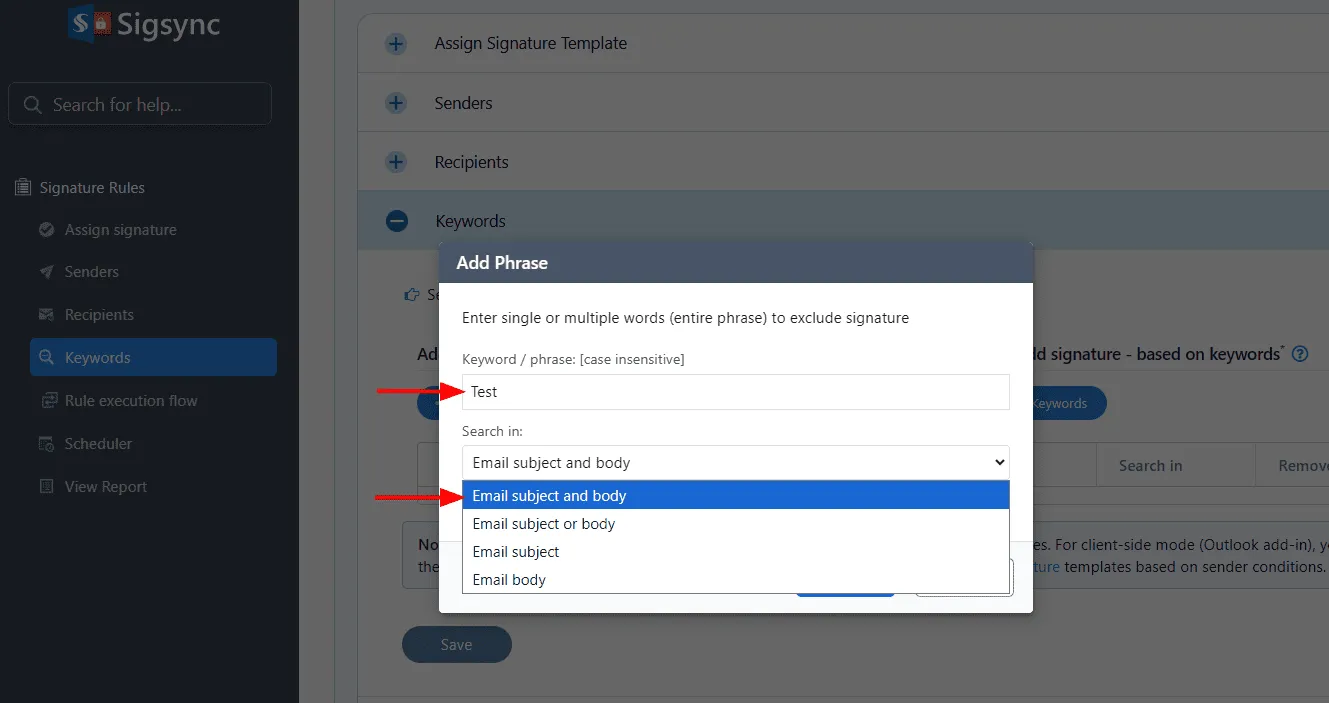
- Check the box ‘Remove this phrase from email subject and body’ if you want the keyword or phrase to be automatically removed from the email when the signature is excluded. Leave it unchecked if you want the keyword to remain in the email.
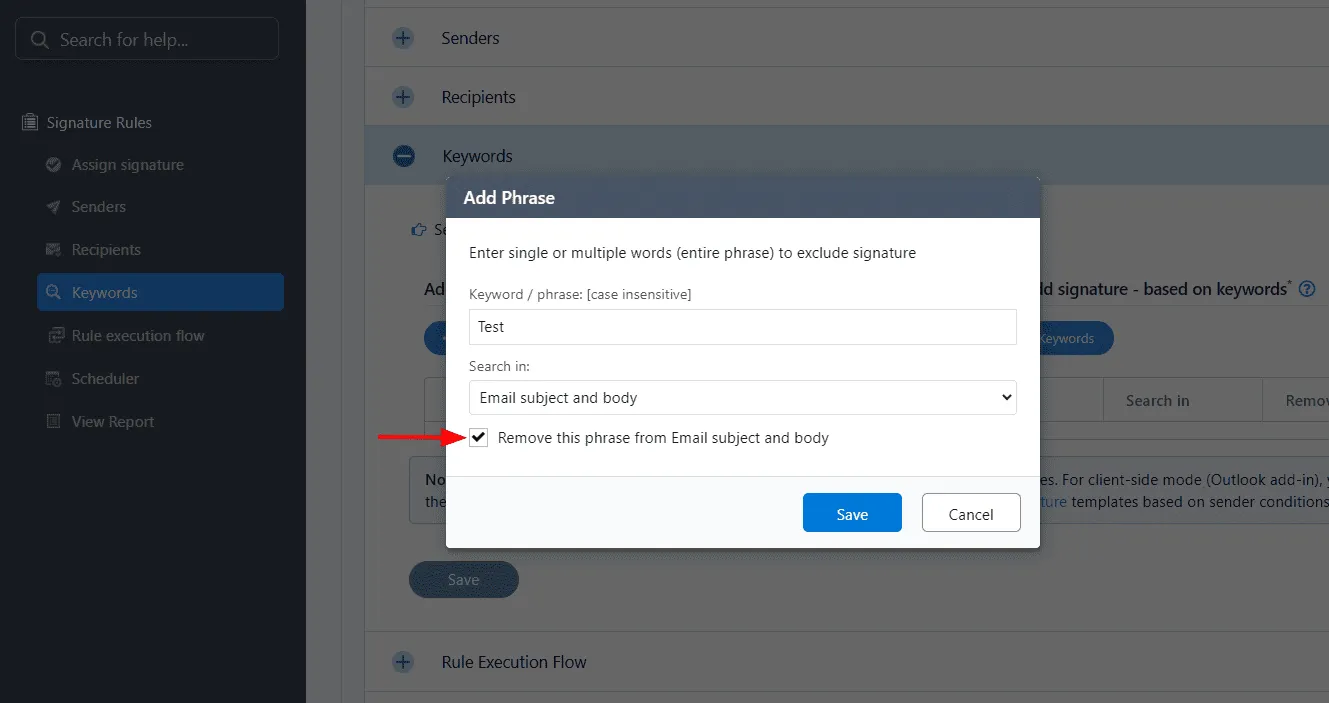
- Save the rule changes
Next Navigate To:
In this manual