

Sync Profile Photos with Sigsync
Sigsync Office 365 Email Signature Software automatically inserts user profile photos from Office 365 Azure Active Directory into email signatures by default, ensuring profile photos remain consistent without any manual effort.
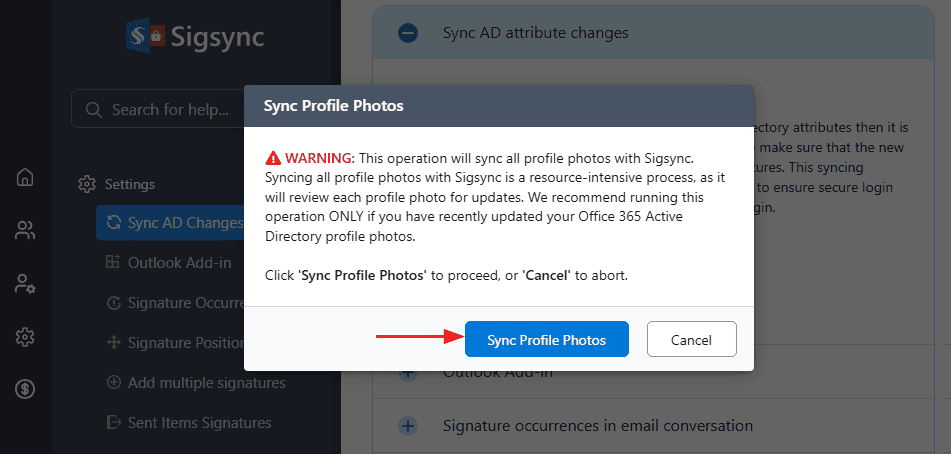
If you have updated profile photos in Azure Active Directory and want those changes to be reflected immediately, Sigsync provides a manual Sync Profile Photos option. This manual sync reviews and updates all user profile photos so that recent changes are accurately reflected in Sigsync. Since each profile photo is checked individually, this operation can be resource-intensive and is recommended only when profile photos have been recently updated.
To start the Profile Photos sync process, follow the steps outlined below:
Steps to sync Profile Photos with Sigsync:
- Login to Sigsync dashboard
- Navigate to ‘Settings & Others’ > ‘Settings’ tabs
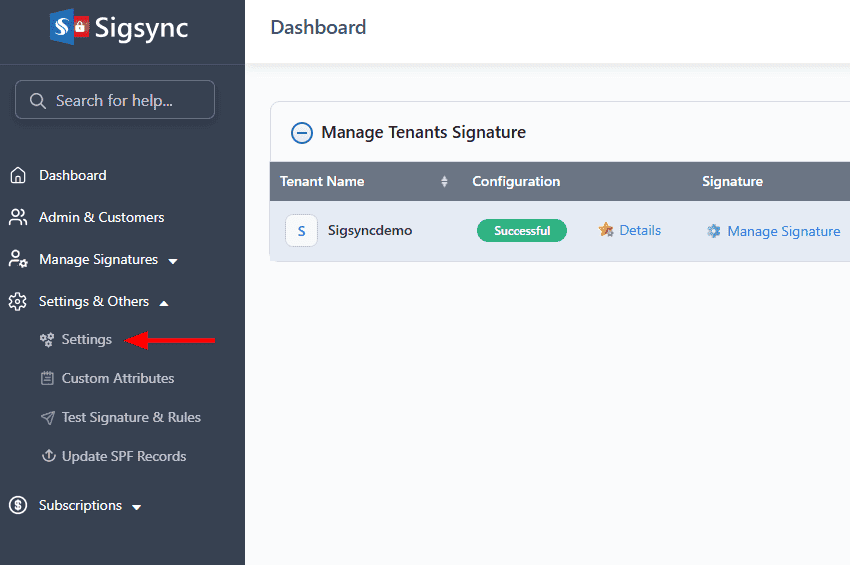
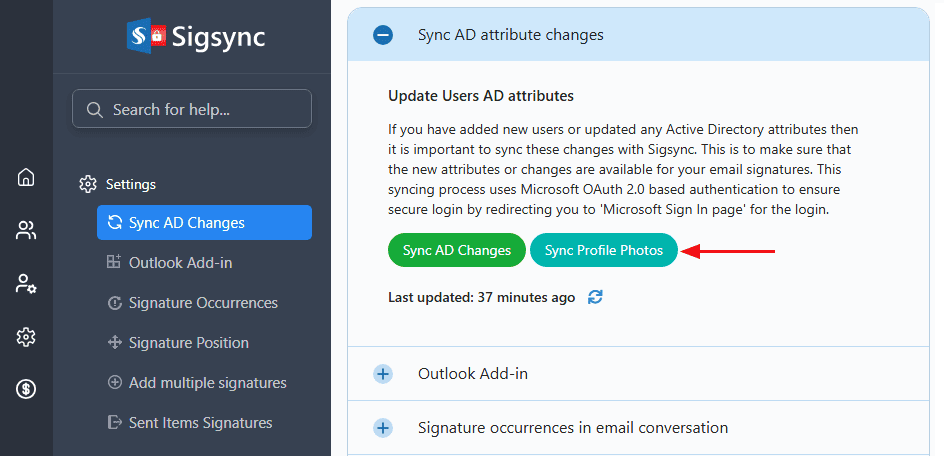
- Select the ‘Sigsync AD changes’ tab and then click the ‘Sync Profile Photos’ button.
- Read the wizard instructions and click ‘Sync Profile Photos’ button
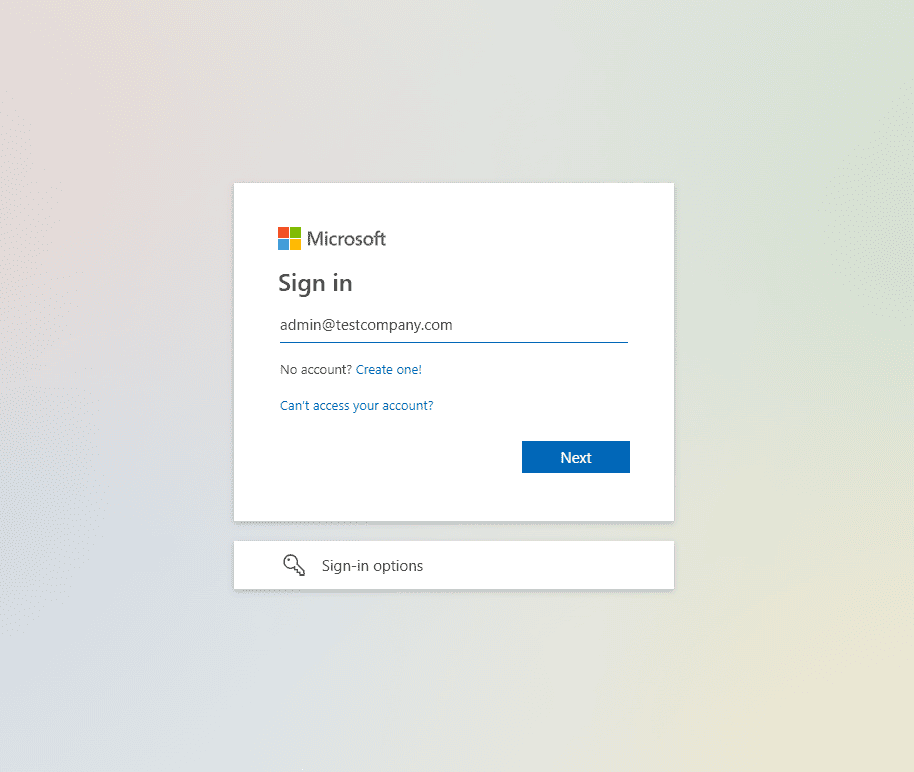
- Authenticate on Microsoft Sign In page with the global admin account that you have used for Tenant registration in Sigsync.
- Click ‘Accept’ to grant the required permissions
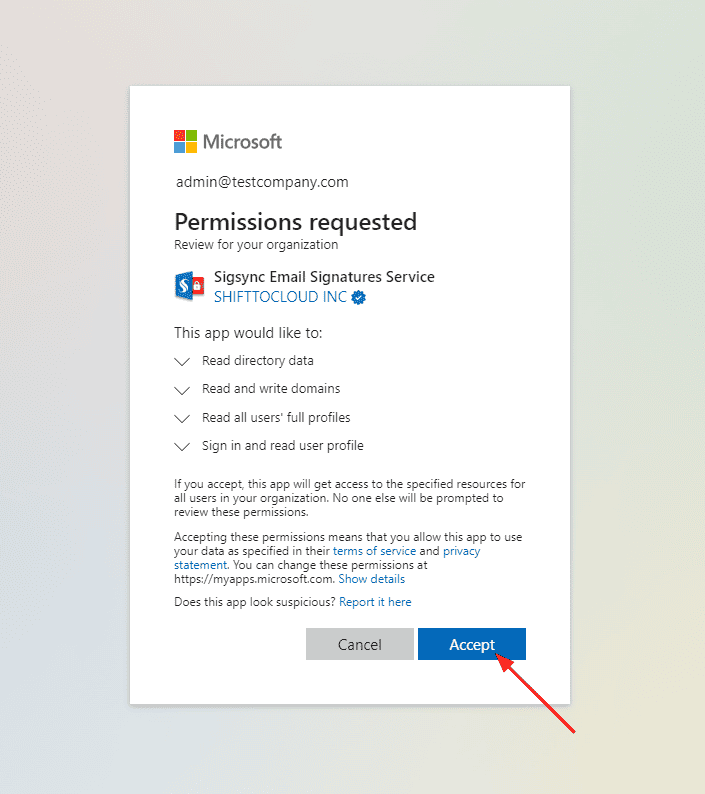
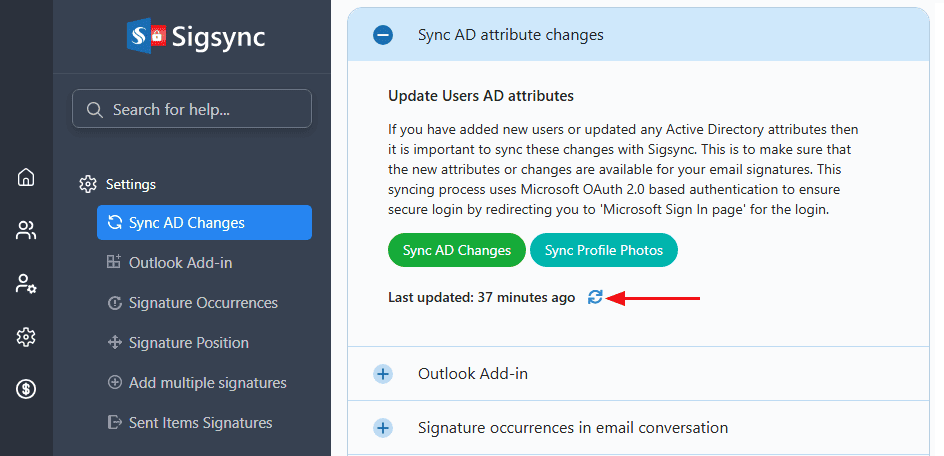
- It may take a couple of minutes to complete the sync process. You can confirm it by clicking the ‘Refresh’ icon.
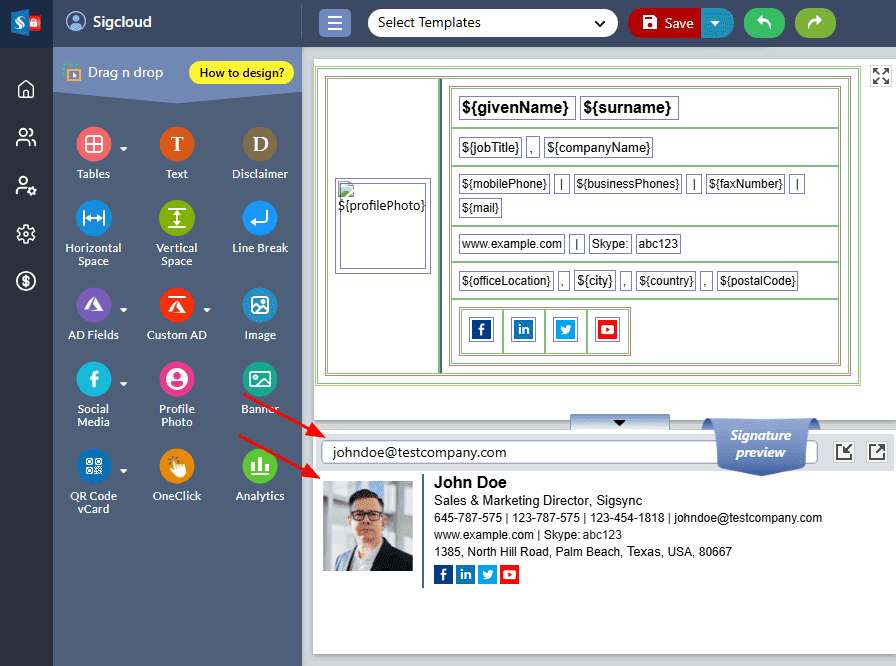
- Now, go to Sigsync editor and preview the profile photo changes
Note: In both Centralized and Client-side modes, it can take up to 15 minutes for changes—such as AD attribute updates, settings, signature rules, or template modifications—to appear in users’ Outlook. To see the changes immediately, manually open the Sigsync Signatures Outlook Add-in pane to clear the Outlook cache, then close and reopen the new mail compose window.
Click here to know more details on Outlook Add-in Cache.
Useful Links:
In this manual