
-
- Reseller
-
Products
Tailored Product Demo for Your Exact Needs
Explore how our solution delivers efficiency, control, and scalability.
Request a Demo
-
Solutions
Tailored Product Demo for Your Exact Needs
Explore how our solution delivers efficiency, control, and scalability.
Request a Demo
- Dashboard
- Features
- Pricing
Remove Sigsync Signatures Outlook Add-in
To remove the Sigsync Signatures Outlook Add-in from deployment, make sure you use the Office 365 Global Admin account that was originally used during the add-in deployment. This allows you to manage and remove the add-in from centralized deployment in the Microsoft 365 admin center.
Once the add-in is removed, Microsoft may take up to 72 hours to propagate the change across all users and Outlook clients. During this time, the add-in may still appear until Microsoft completes the update. After propagation is complete, the Sigsync add-in will no longer be available in Outlook.
Steps to Remove the Sigsync Signatures Outlook Add-in
- Login to your Office 365 Tenant admin center.
- Navigate to ‘Settings’ > ‘Integrated apps’ from the left side pane.
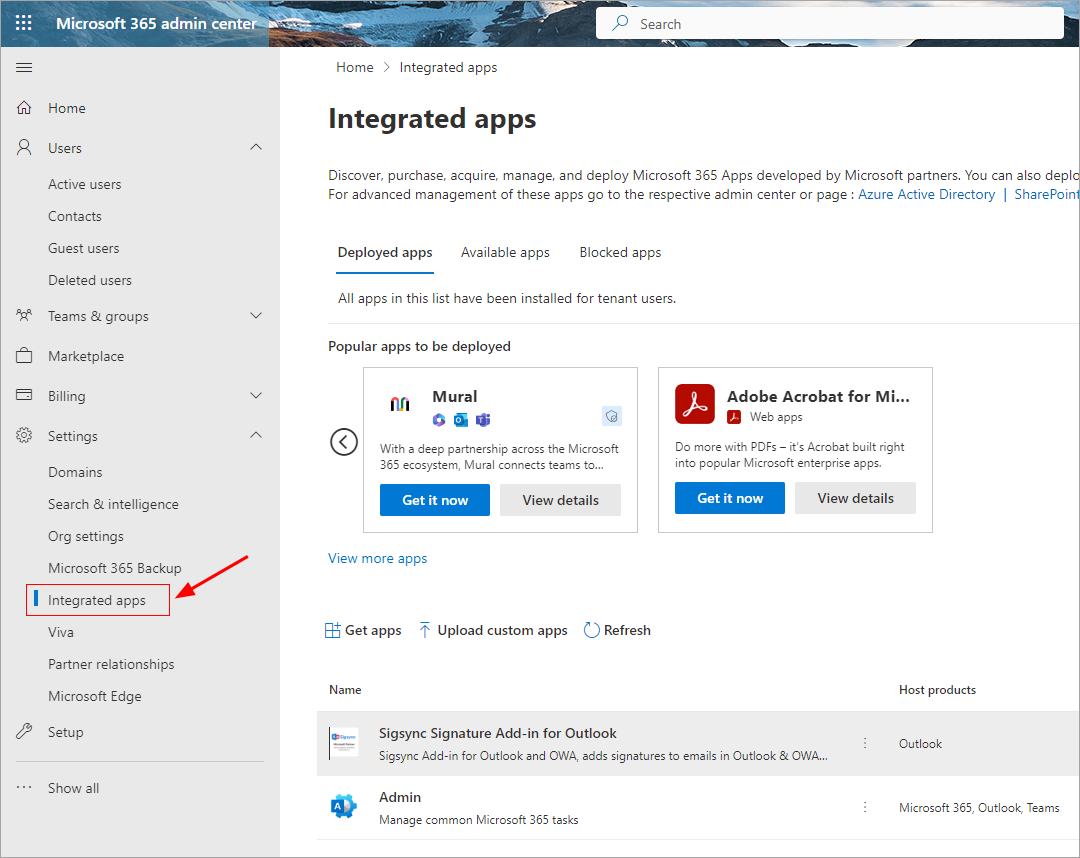
- Click ‘Sigsync Signature Add-in for Outlook’ on the right side pane.
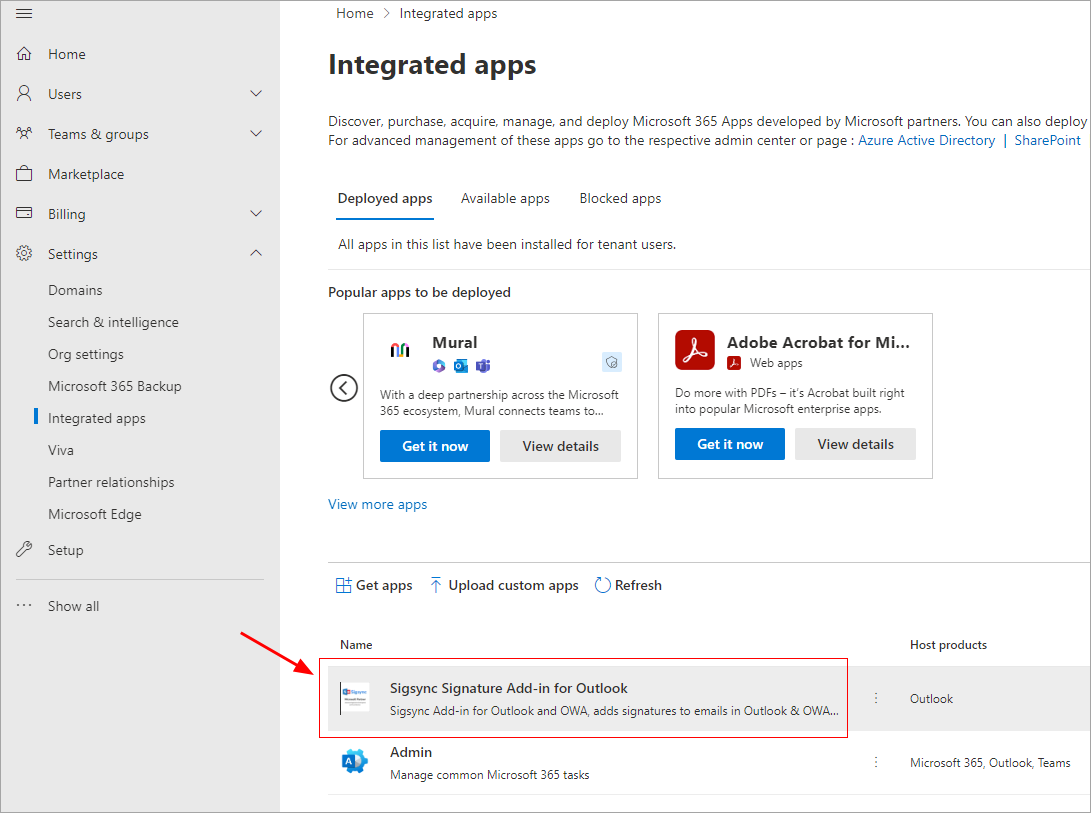
- Hit ‘Remove app’ under the ‘Actions’
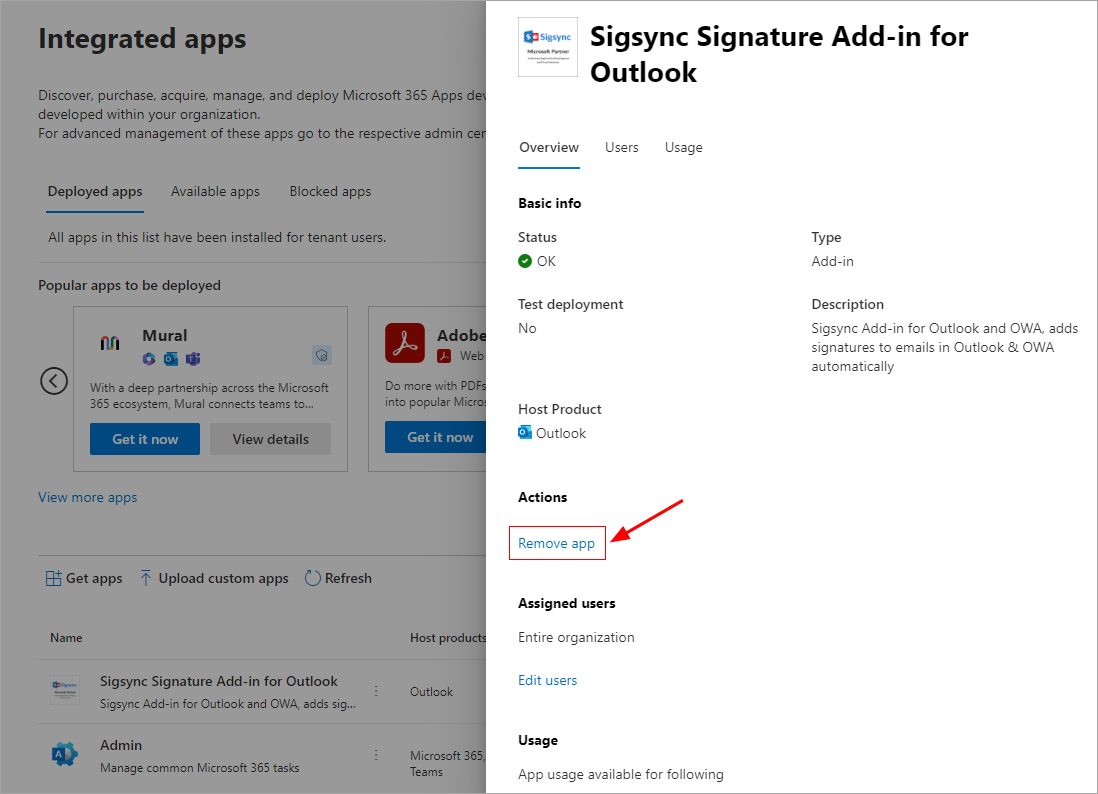
- Confirm the add-in remove operation and click the ‘Remove’ button.
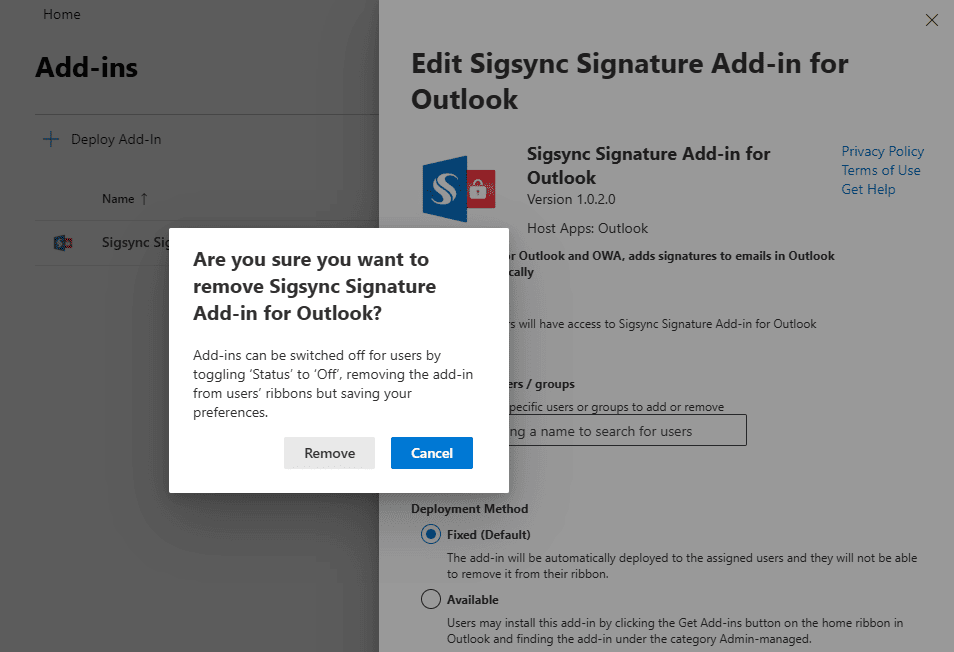
- Wait until the Add-in is removed from the Integrated Apps dashboard
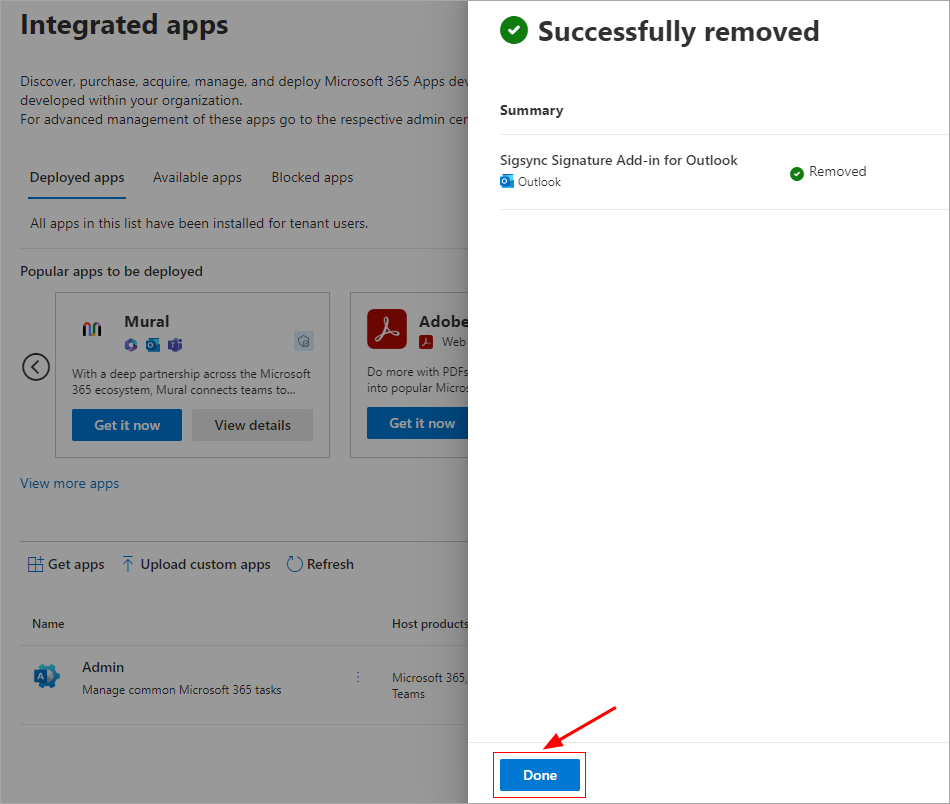
Microsoft may take up to 72 hours to propagate the removal of the Outlook add-in across all users
Alternate Method to Remove the Add-in:
In some cases, Microsoft 365 administrators may encounter errors when attempting to remove an Office Add-in from the Integrated Apps portal. This behavior is part of known Office Add-in limitations, and Microsoft is currently investigating the issue.
For more details refer to Microsoft’s official documentation:
https://learn.microsoft.com/en-us/office/dev/add-ins/resources/resources-office-add-in-known-issues
If the add-in cannot be removed using the standard Integrated Apps interface, you can use the advanced management options available in the Microsoft 365 admin center:
- Sign in to the Microsoft 365 admin center.
- From the left navigation pane, select Show all, then go to Settings > Integrated apps.
- At the top of the page, select Add-ins under advanced management options.
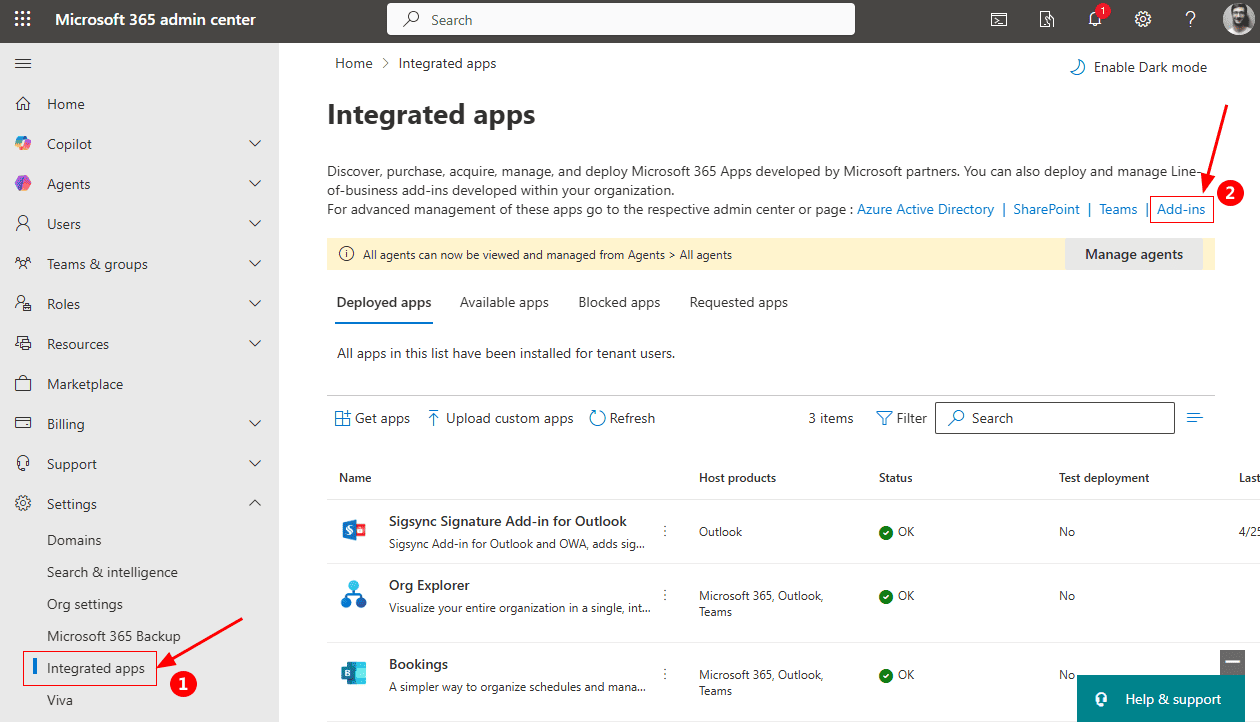
- Select the add-in you want to remove.
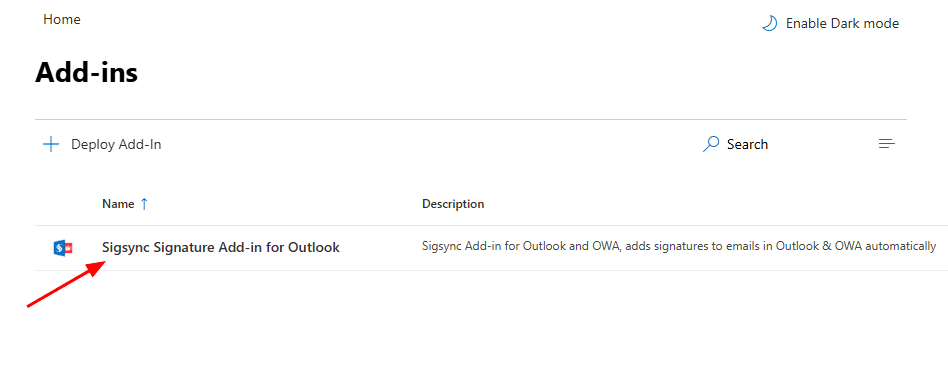
- Scroll to the bottom of the pane and click Remove add-in.
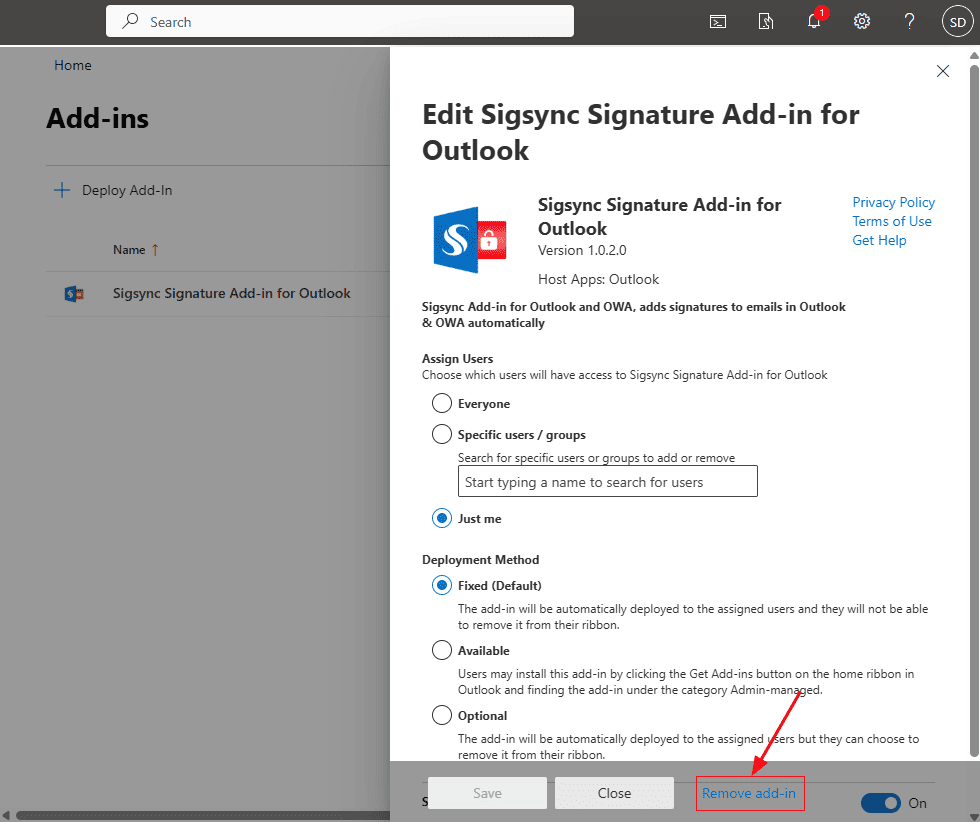
- Confirm the action by selecting Remove when prompted.
Microsoft may take up to 72 hours to propagate the removal of the Outlook add-in across all users
Click here to know the steps to deploy the Sigsync signatures Outlook Add-in for all users
Note: If you previously deployed the Sigsync Signature Outlook add-in using the 'From URL' or 'From File' methods, follow the options below to remove the deployment.
Remove add-in from individual user
Remove add-in from centralized deployment
In this manual