-
- Reseller
-
Products
Tailored Product Demo for Your Exact Needs
Explore how our solution delivers efficiency, control, and scalability.
Request a Demo
-
Solutions
Tailored Product Demo for Your Exact Needs
Explore how our solution delivers efficiency, control, and scalability.
Request a Demo
- Dashboard
- Features
- Pricing
Integrate Bookings with me with Sigsync email signature
'Bookings with me' is an online booking service within Microsoft 365 that enables users to create a personal booking interface, called a booking page. This page allows you to manage appointments and meetings efficiently. The booking page can be shared with colleagues or external contacts / clients. By sending them a link to your booking page, they can conveniently schedule a meeting with you.
Bookings with me option is included in the Microsoft 365 business plans detailed here. Being a native Microsoft feature, it integrates directly with your mailbox, calendar, and Teams for a cohesive experience.
You can easily integrate your booking page link with Sigsync Office 365 email signature service. By adding your booking page link to your email signatures.
Why Add Bookings with me Links to Email Signatures?
- Let others quickly view your availability and schedule meetings with ease.
- Eliminate the hassle of manually configuring meetings and sending booking links.
- Save time by reducing lengthy email conversations required to finalize meeting details.
- Enable recipients to book meetings directly from your email signature.
- Maintain professional and consistent email signatures across your organization.
Set up Bookings with me
To set up the Bookings with me follow the steps below:
- Log in to Outlook on the web (OWA)
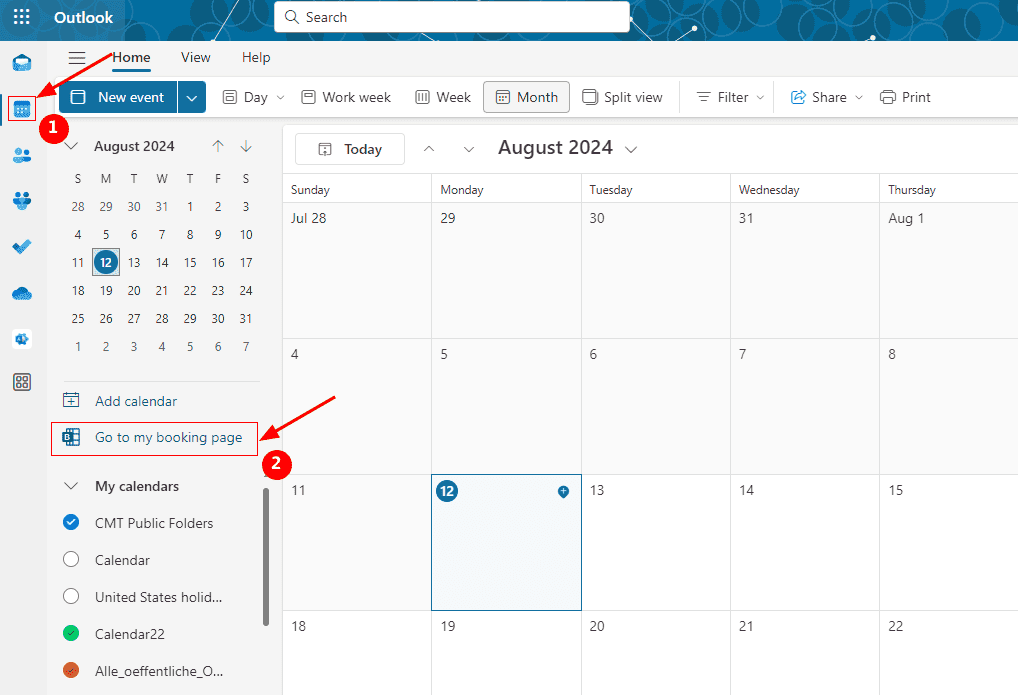
- Click the calendar icon from the left pane, and click ‘Go to my booking page’
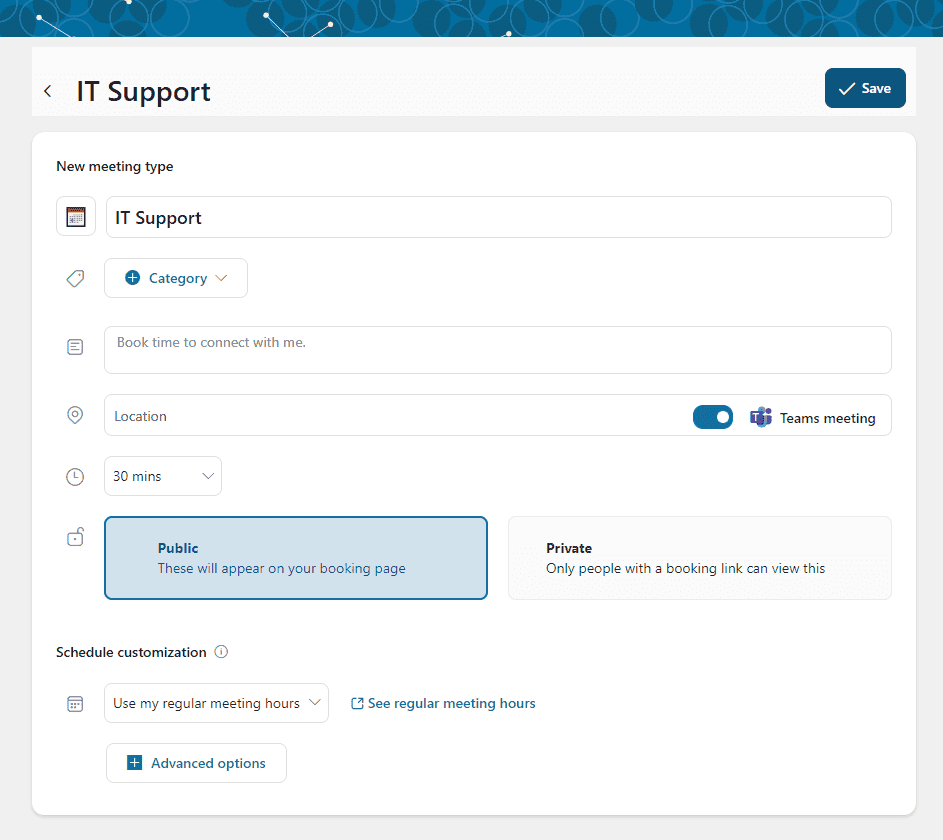
- Click ‘Create meeting type’
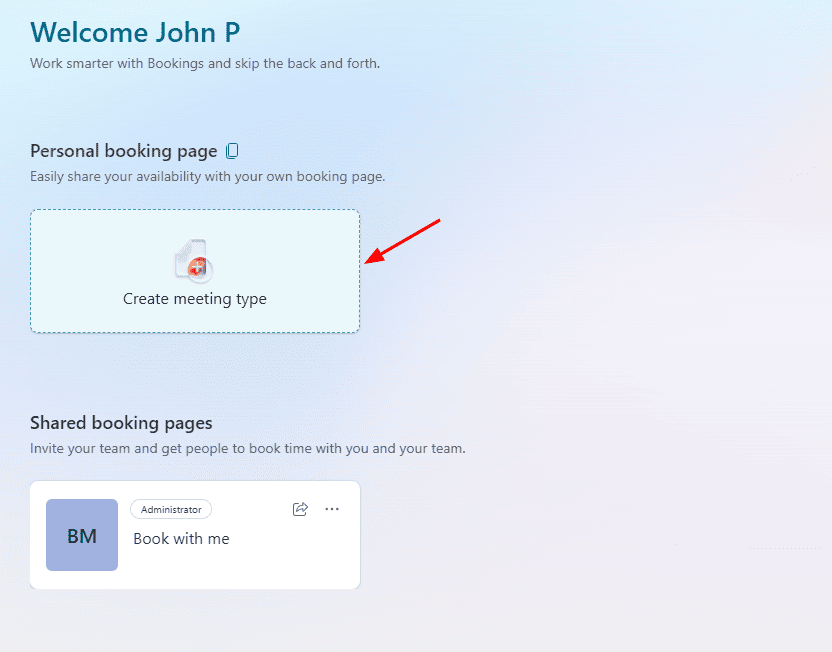
- Specify the meeting name, provide a detailed description, set its duration, and define the available hours for booking. You can also adjust advanced settings, such as buffer time before and after the meeting. Once you have configured all the details, click ‘Save’ to apply the changes.
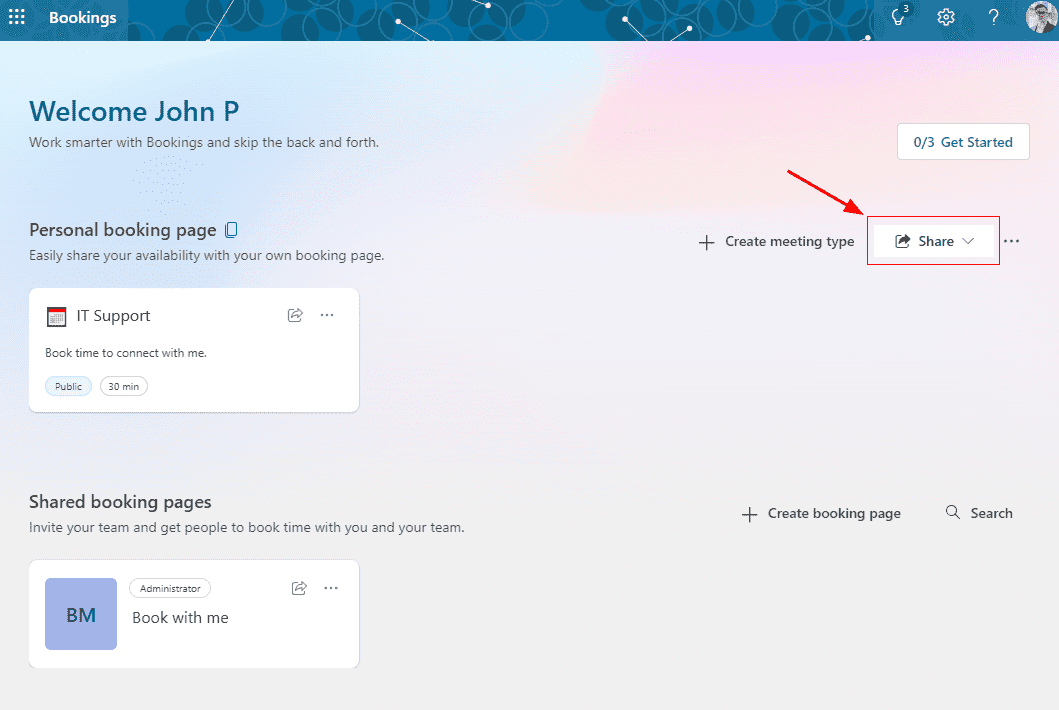
- Once you create your first meeting, your booking page becomes active. You can copy the link to view it in a browser or share it with others using the ‘Share’ button. The ellipsis button allows you to edit the page's banner image or disable the page if needed.
Integrate booking page link with Sigsync email signature
To integrate booking page link with Sigsync email signature, follow the below steps:
- Create a custom attribute using Sigsync
- Add the booking page link in the custom attribute
- Integrate booking page link with signature
Step 1: Create a custom attribute using Sigsync
First, you need to create a Sigsync custom attribute that each user will be able to use to store their booking page link.
- Login to Sigsync dashboard
- Navigate to 'Settings & Others' > 'Custom Attributes' tab
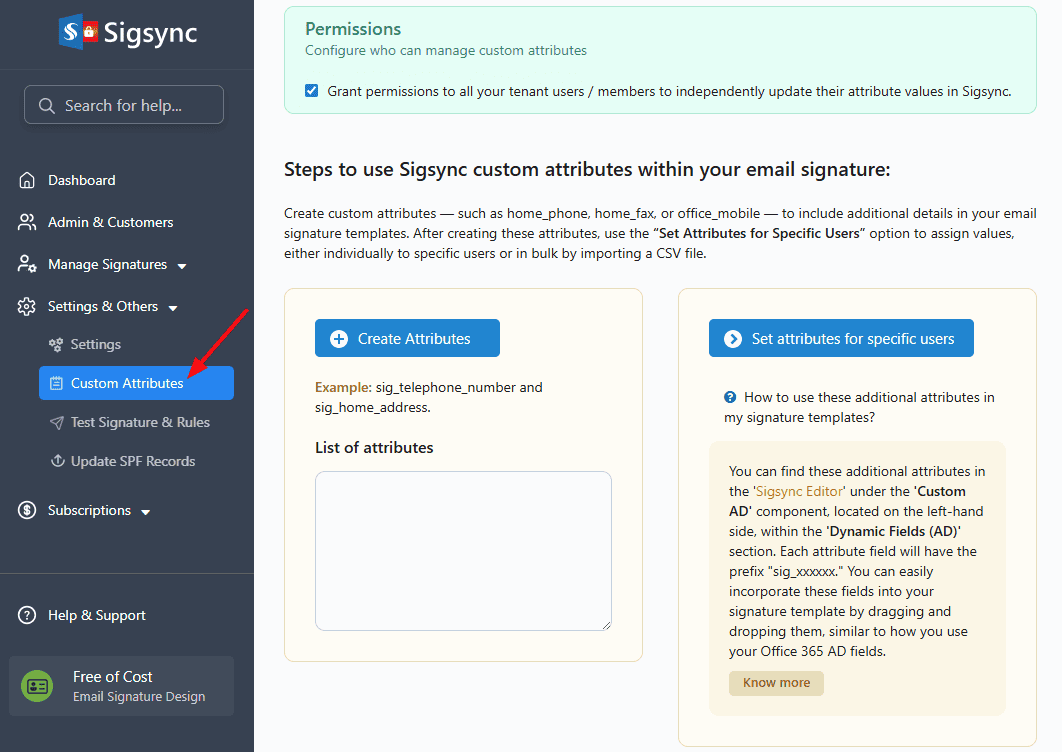
- Click the 'Create Attribute' button
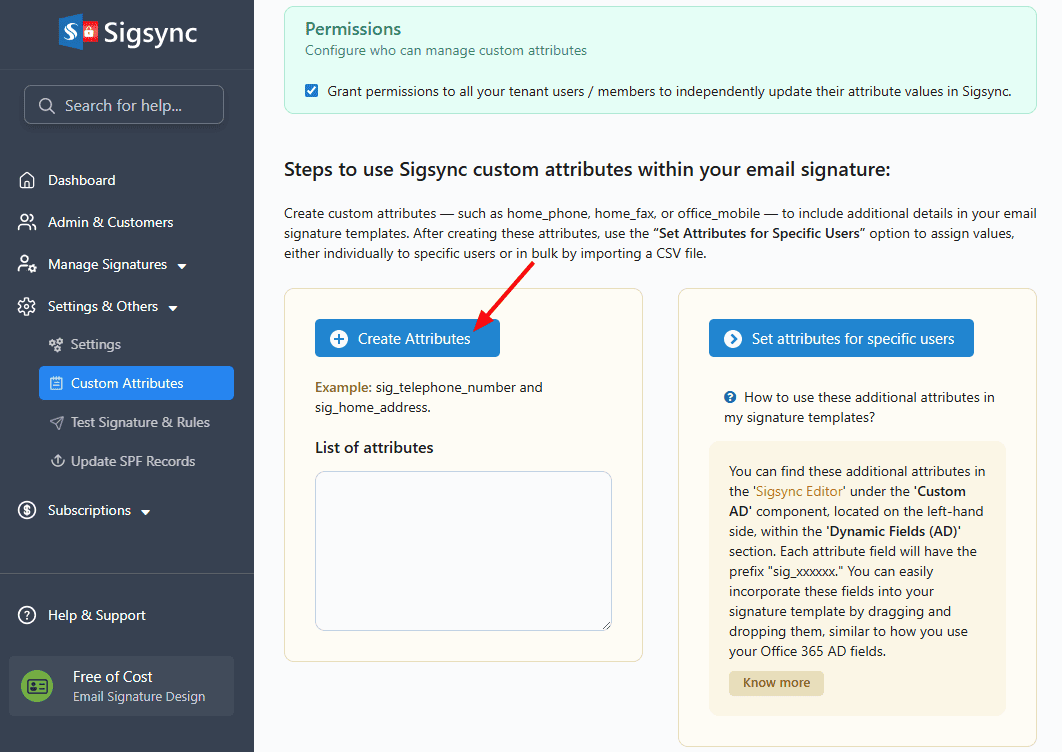
- Give a name to the attribute and click the 'Add' button
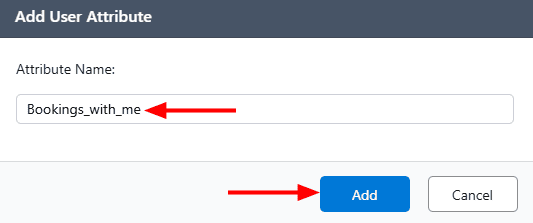
Step 2: Add the booking page link in custom attribute
- Click the ‘Set attributes for specific users’ button
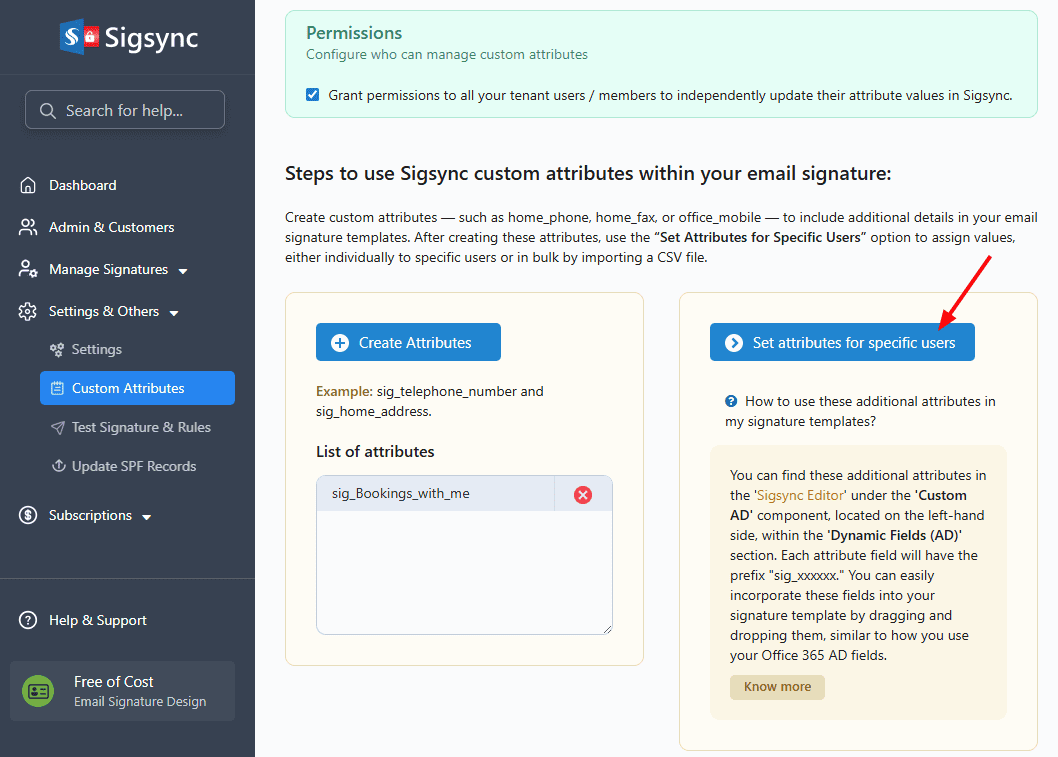
- Select the user and click the ‘Set Attributes Value’.
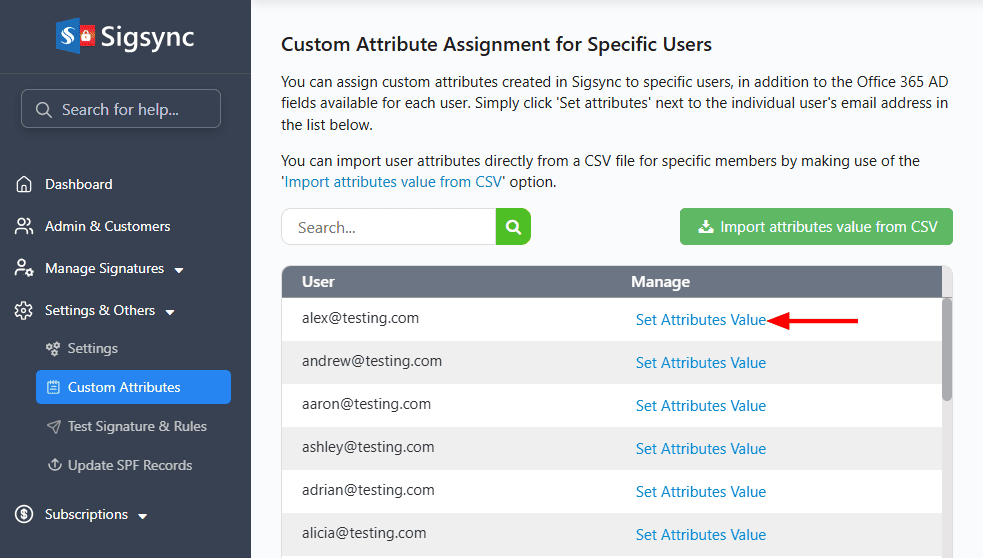
- Insert the booking link and click the ‘Save’ button
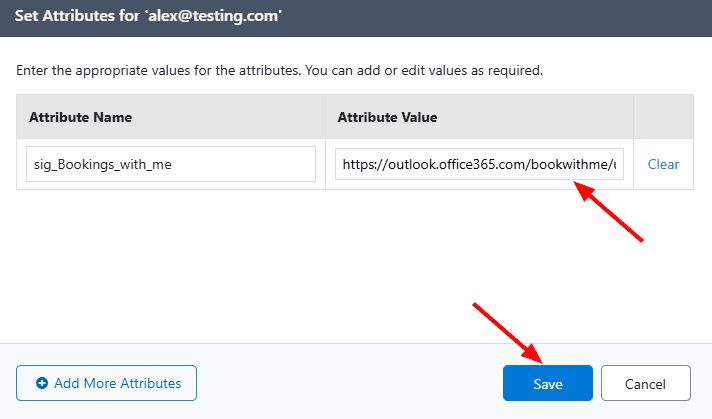
Step 3: Integrate booking page link with signature
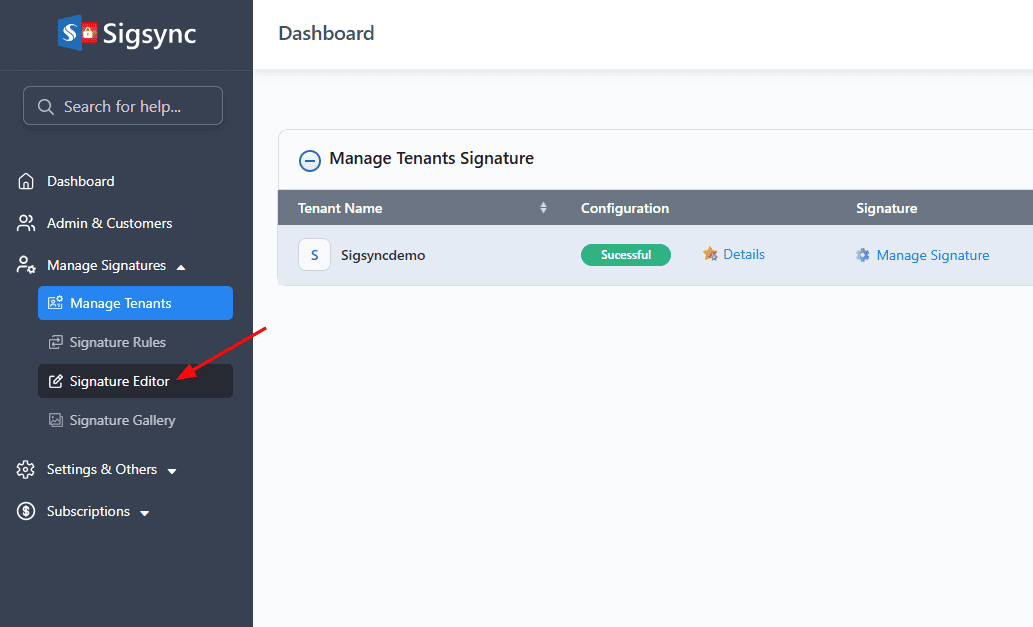
- Navigate to ‘Manage Signatures’ → ‘Signature Editor’ tab.
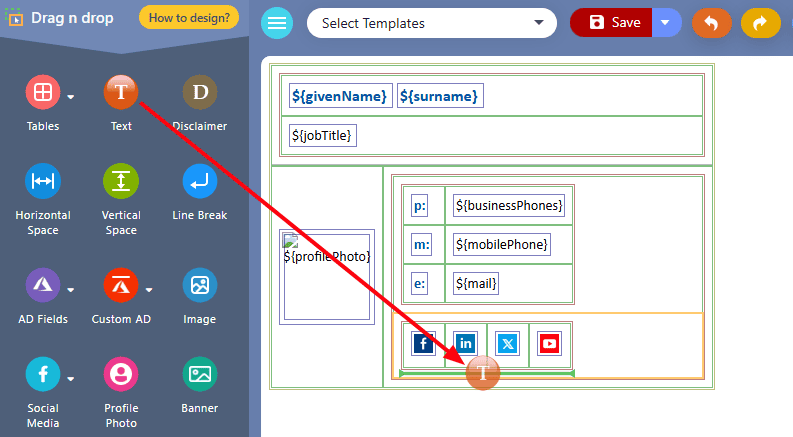
- Select the template and insert the ‘Text’ field
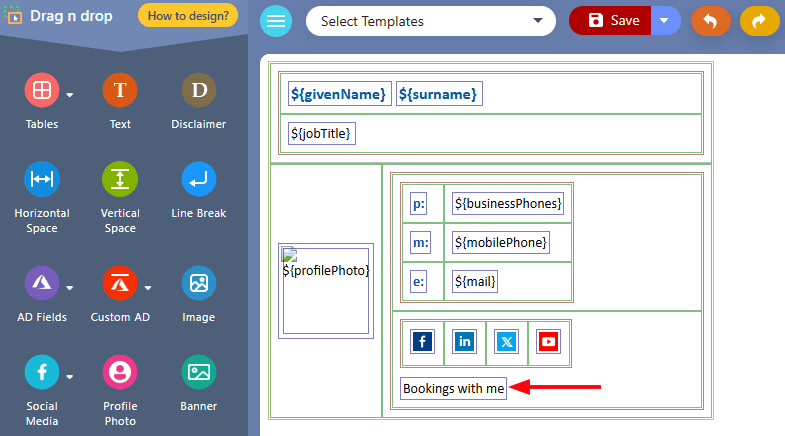
- Select the text and edit it as ‘Bookings with me’
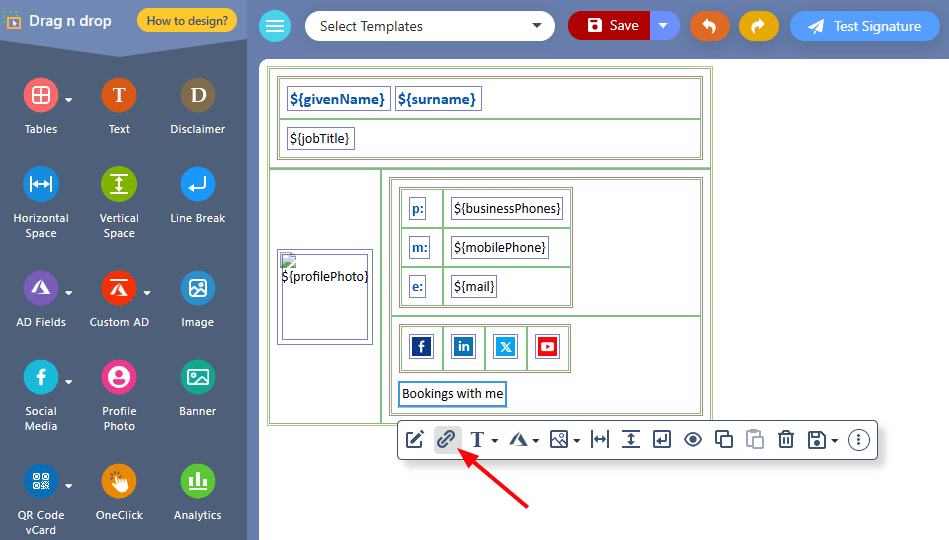
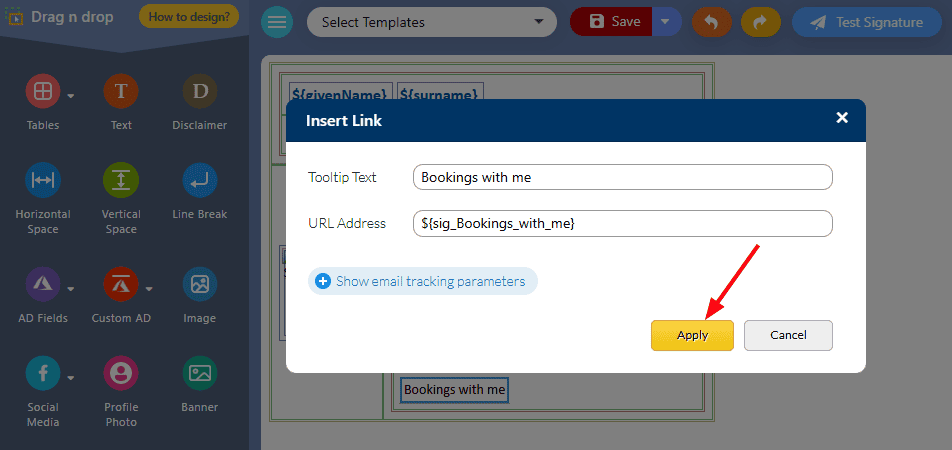
- Select the ‘Bookings with me‘ text field, then click on the ‘Hyperlink’ icon.
- Insert ‘${sig_Bookings_with_me}’ as a link and click on ‘Apply’.
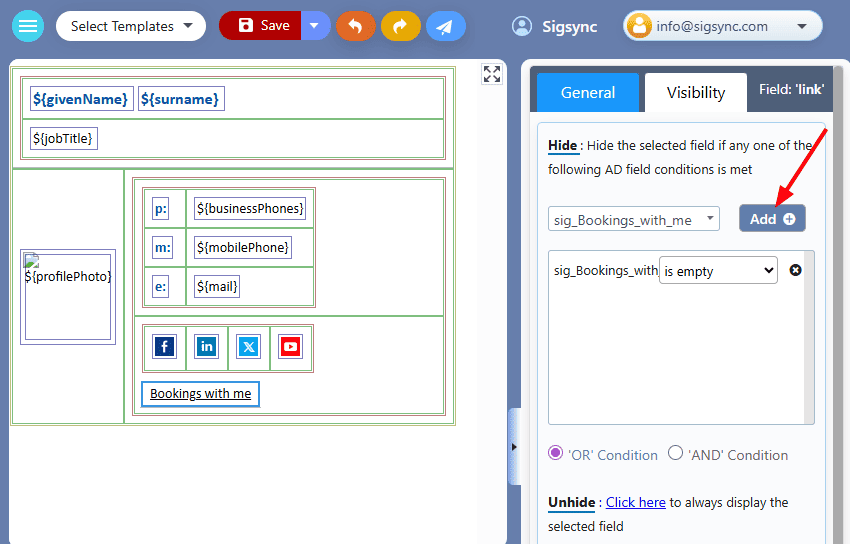
- Click on the ‘Visibility’ tab and select the ‘sig_Bookings_with_me’ attribute from the dropdown list and click on ‘Add’. This sets the ‘Hide’ property to the custom attribute field for the user who doesn't have a Bookings page link.
- Search the sender in the preview pane
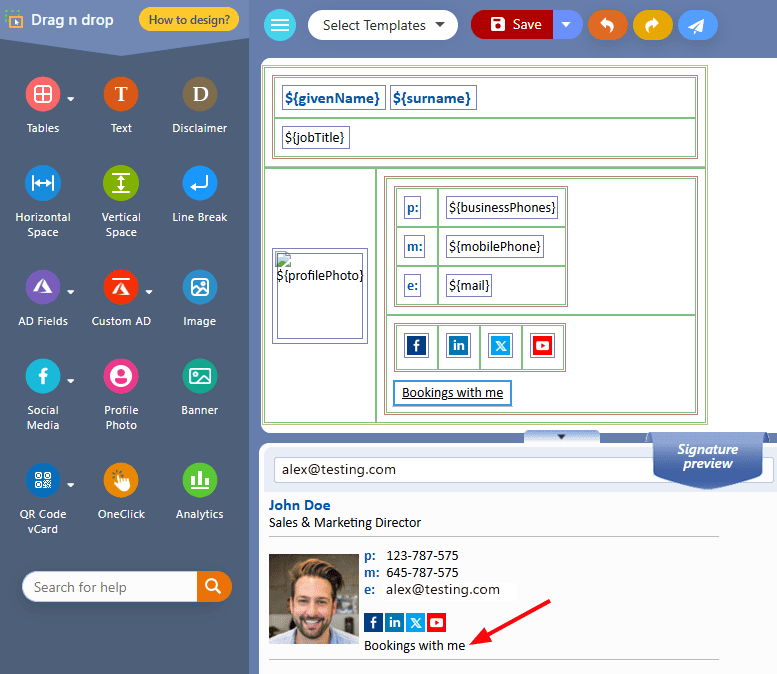
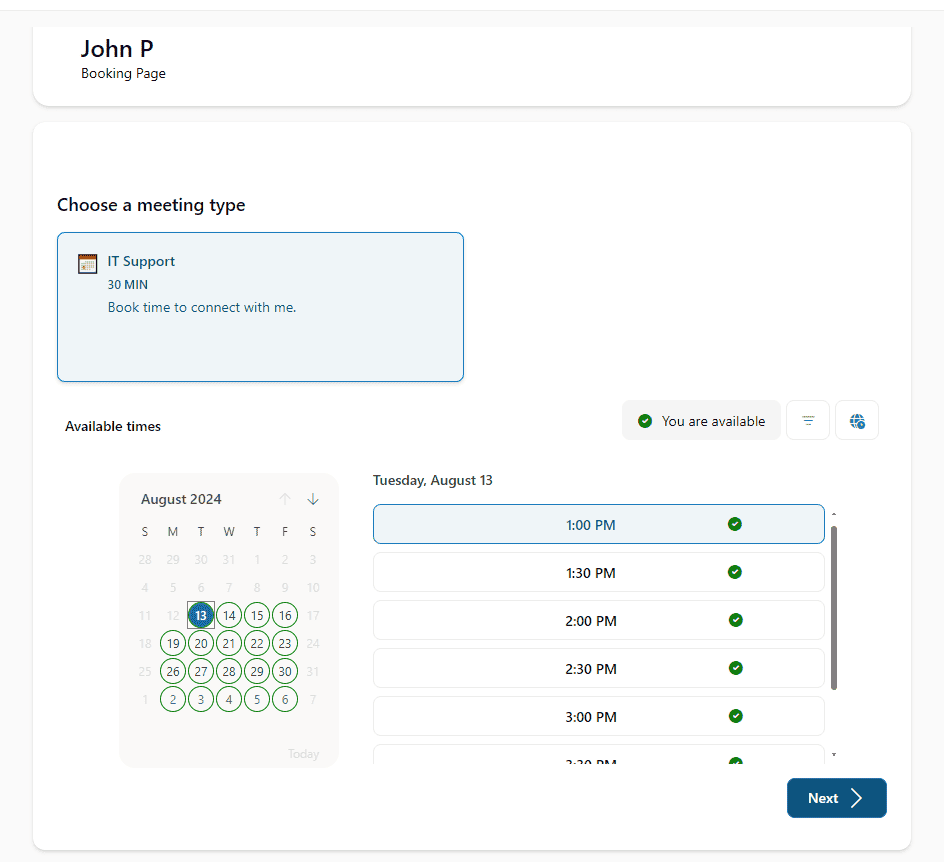
- Now, a link to the booking page will be added to the email signature. When recipients click the link, they can schedule a meeting with the end user.
Useful Links:
In this manual