

Switch from Server Mode to Centralized Mode
Switching from Server Mode to Centralized Mode provides a more interactive and user-friendly signature experience. In this mode, the Sigsync Outlook Add-in inserts the signature directly into the email compose window, giving users immediate visibility and allowing permitted edits before sending. This ensures a familiar Outlook experience while maintaining the organization’s branding standards. Centralized Mode is a suitable option for teams that prefer real-time signature preview in Outlook, combined with centralized control of templates and rules.
Steps to Switch from Server Mode to Centralized Mode
- Login to the Sigsync Dashboard
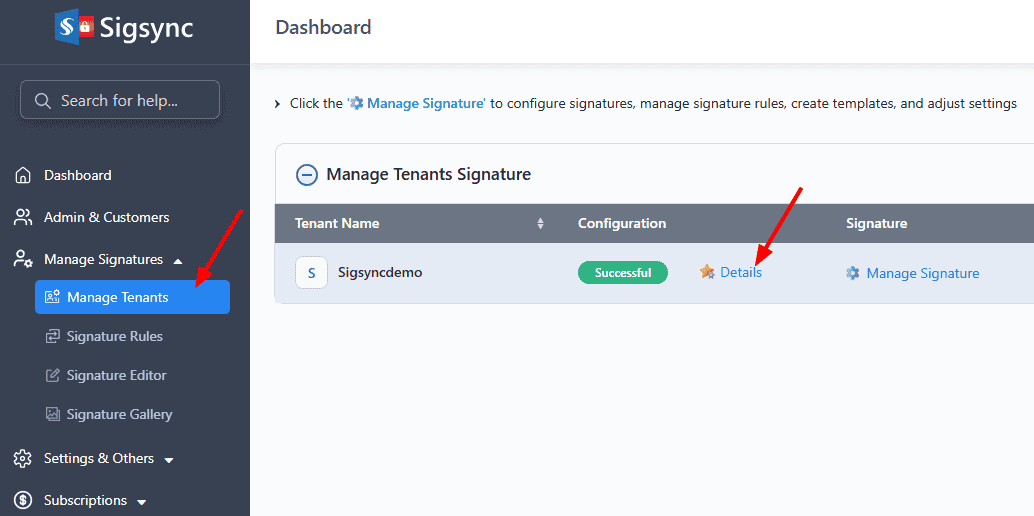
- Navigate to the ‘Manage Tenants’ tab, and on the right-hand side, click on ‘Details’ under the Configuration column.
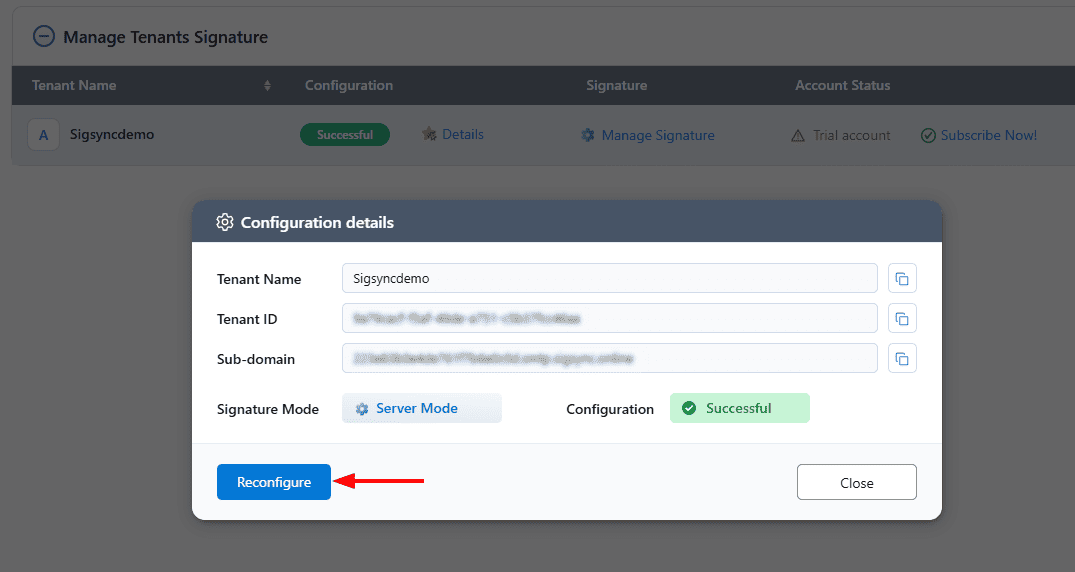
- Click the ‘Reconfigure’ button
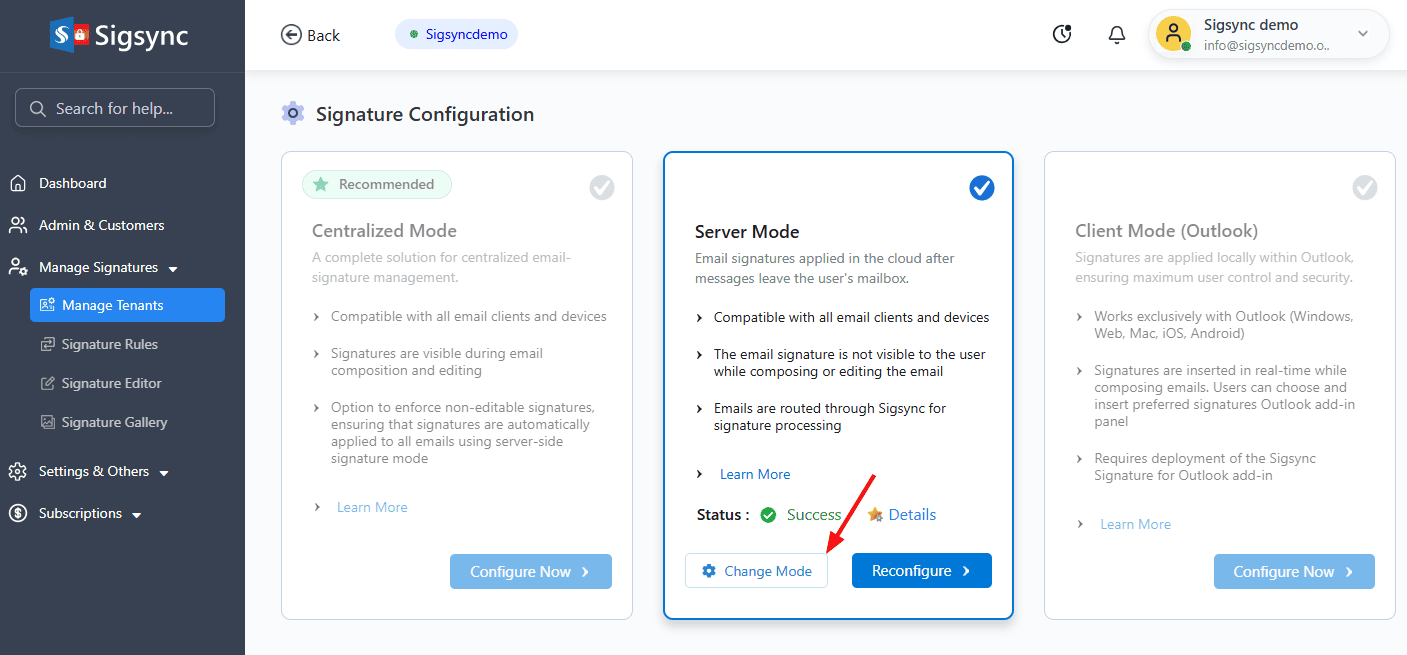
- Click on ‘Change Mode’ to switch from Server mode to Centralized mode.
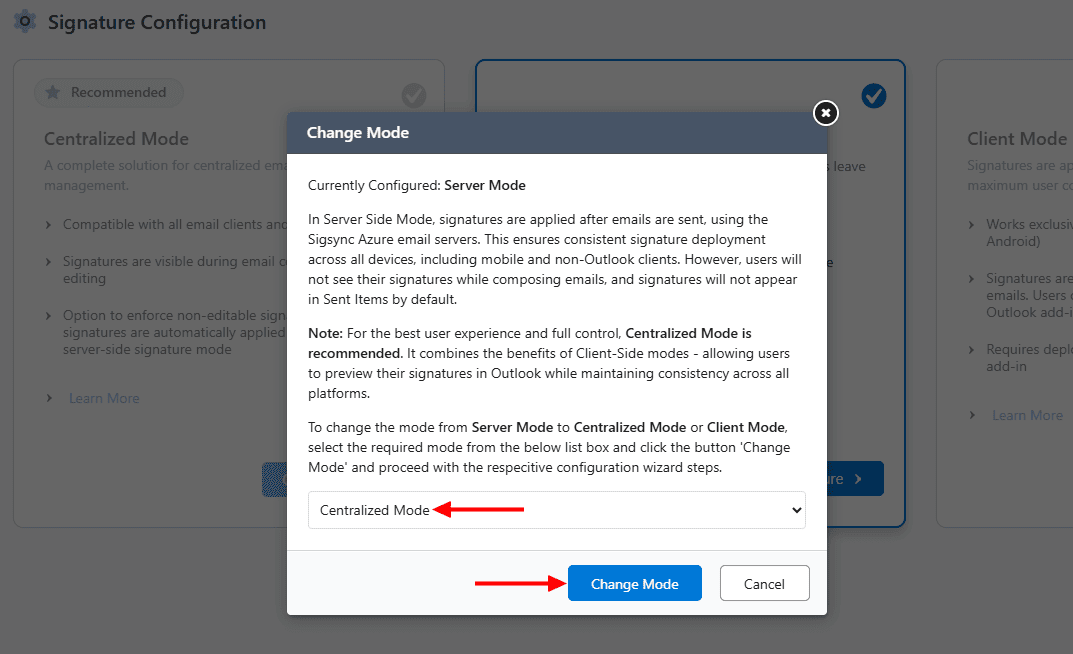
- Select Centralized mode from the drop-down list and click the ‘Change Mode’ button.
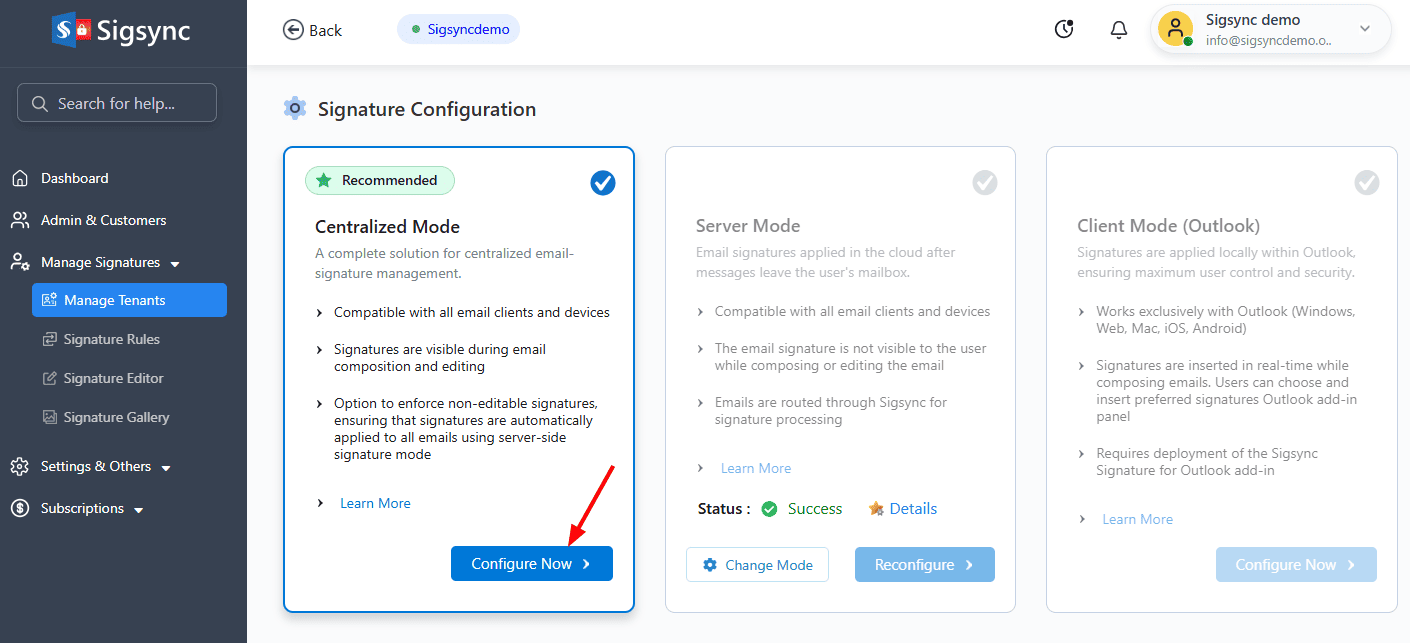
- Click the ‘Configure Now’ button to continue the Centralized mode setup.
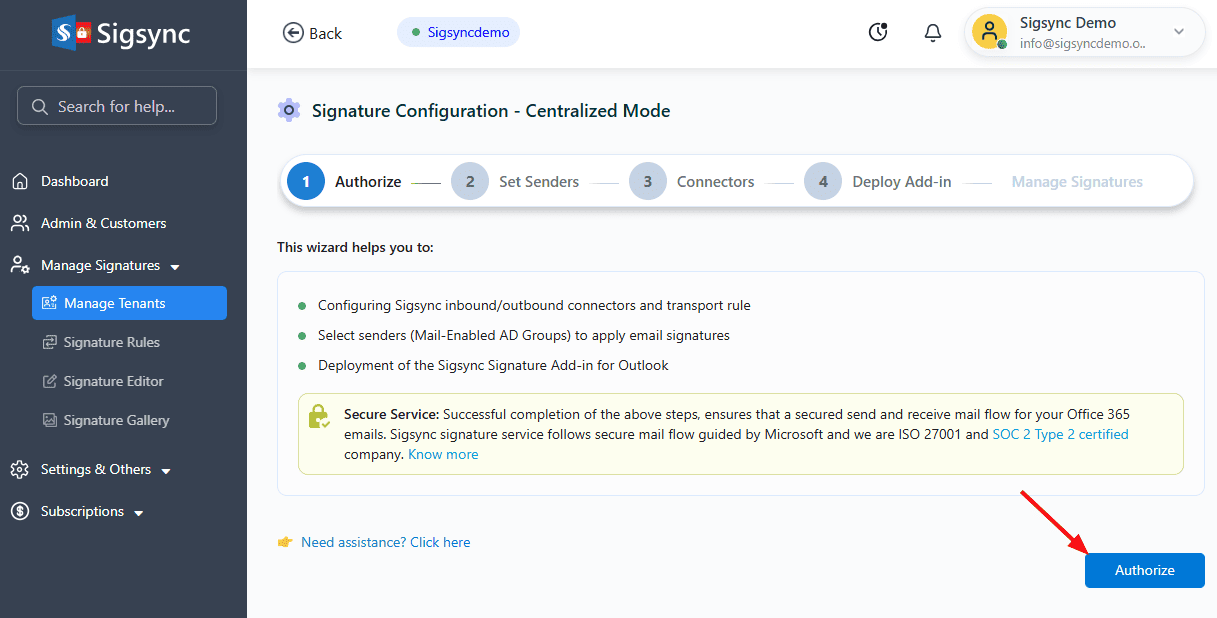
- Click ‘Authorize’ to proceed.
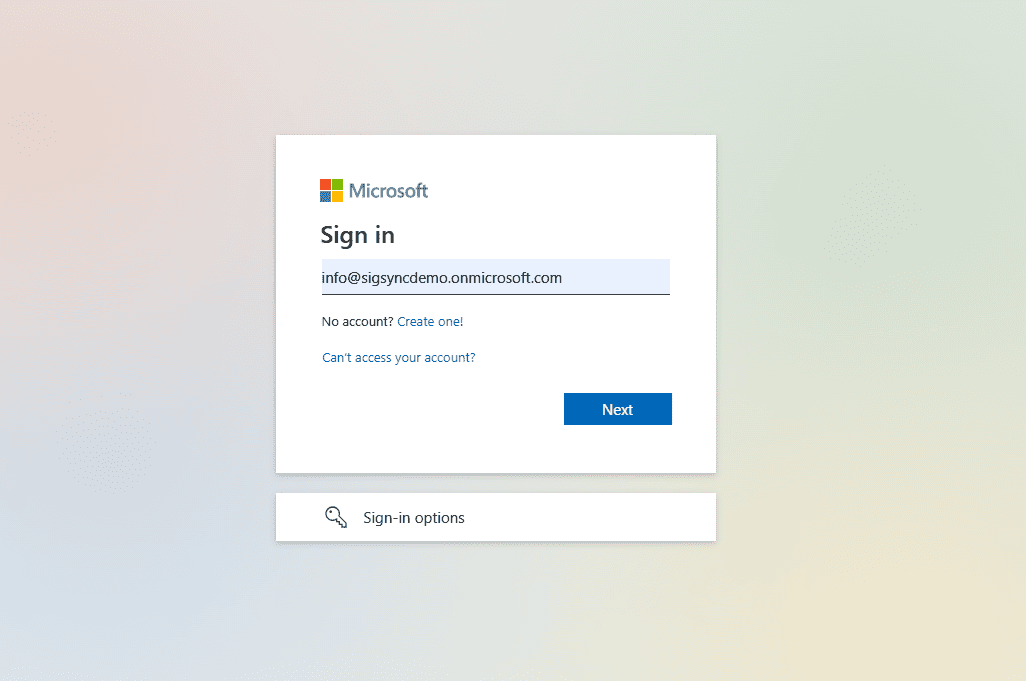
- Authenticate using your Office 365 Global admin account.
Set senders
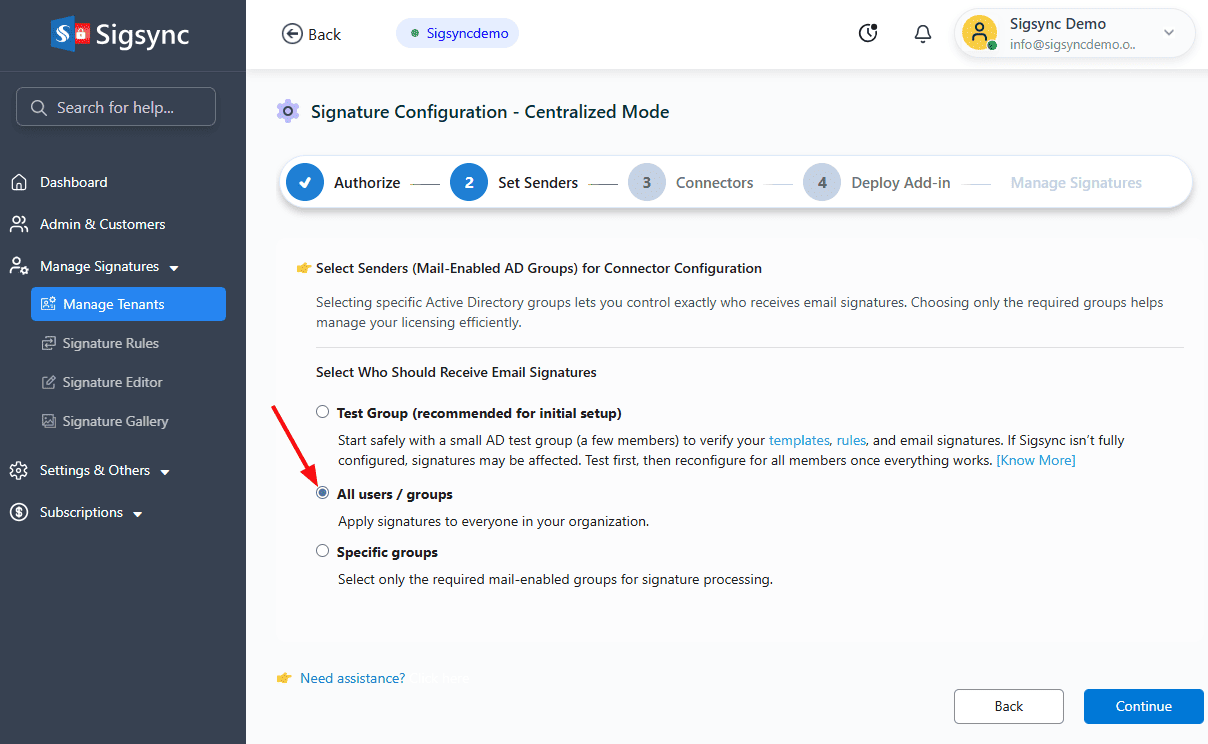
Select the senders for signature configuration. You can choose from the following options:
- All users / groups
This option lets you apply signatures to every user in your organization.
- Specific groups:
This option lets you apply only to the members of your Office 365 Azure Active Directory groups (Example: ‘Sales’, ‘HR’, or ‘Support’ etc.)
- Click ‘Choose Groups’.
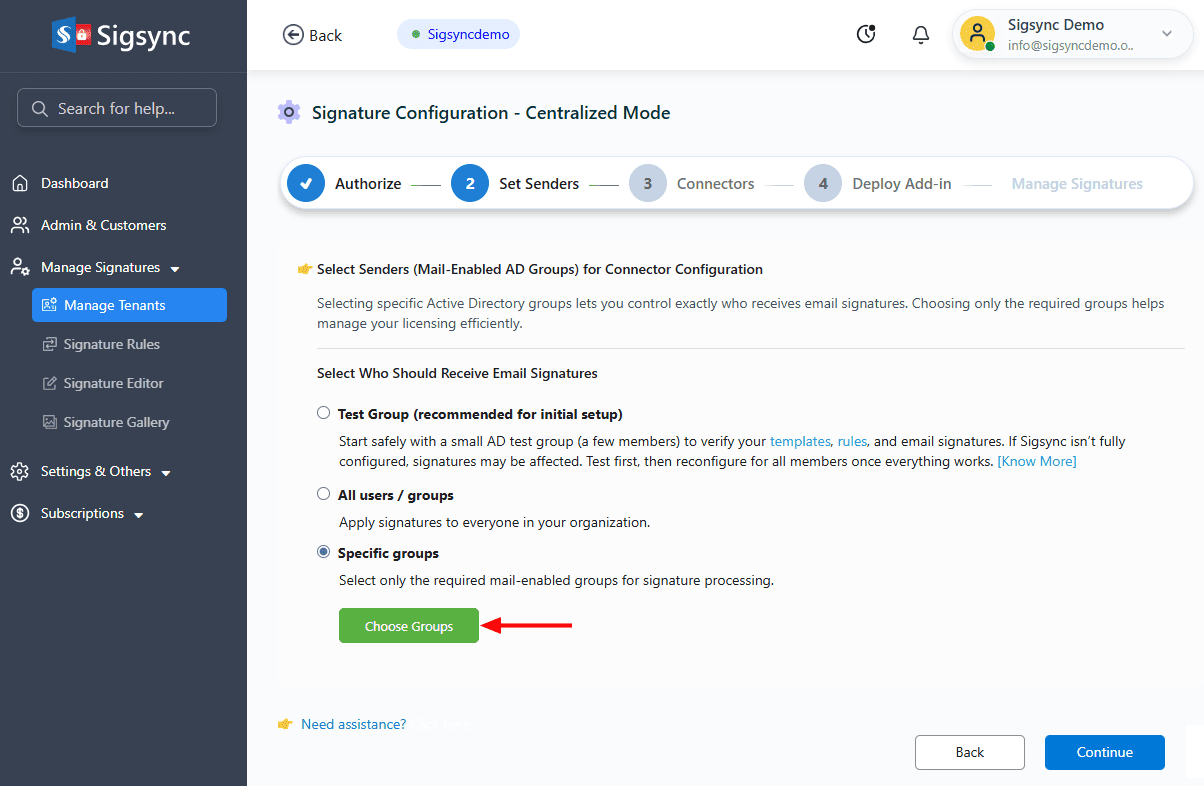
- Select the required group and click ‘Ok’ to proceed
- The selected AD groups will appear in the list. To remove a group, click the ‘x’ icon next to it, then click ‘Continue’ to proceed.
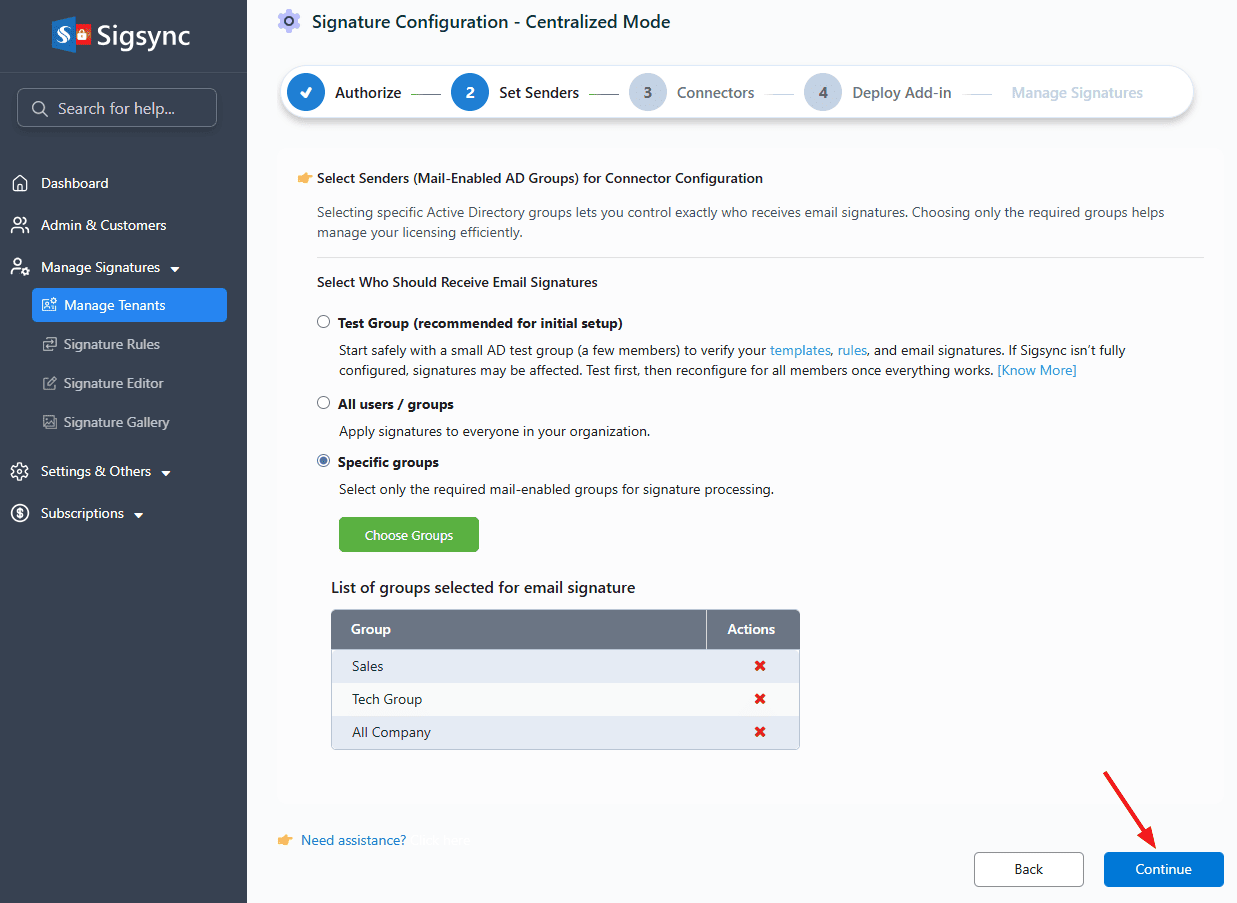
- Click the ‘Configure’ button to proceed with signature configuration.
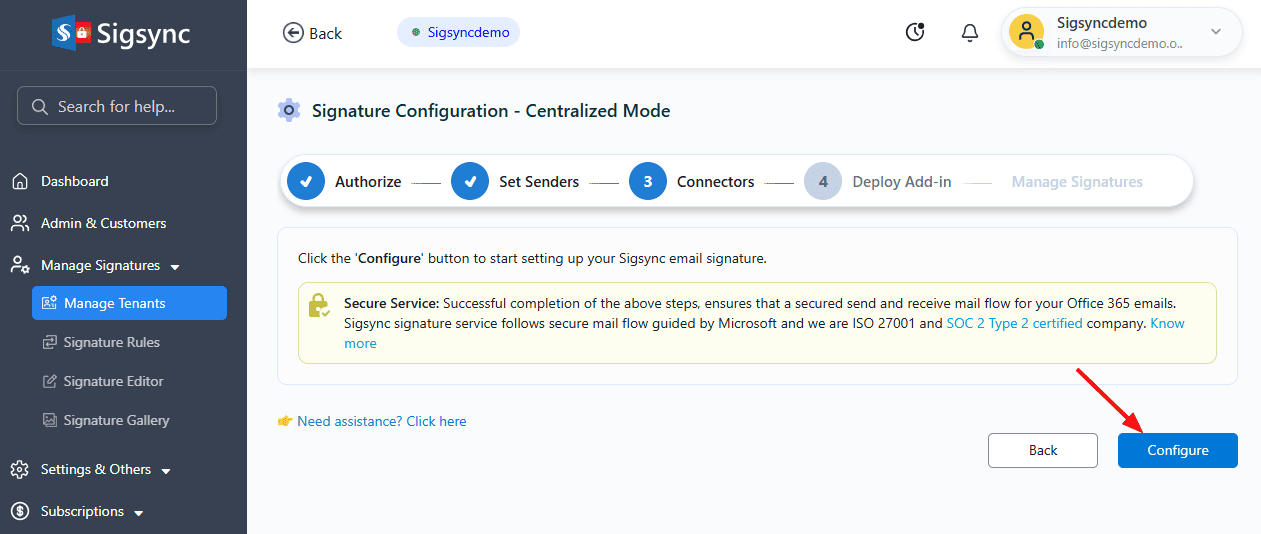
- Connectors configuration takes a couple of minutes to complete.
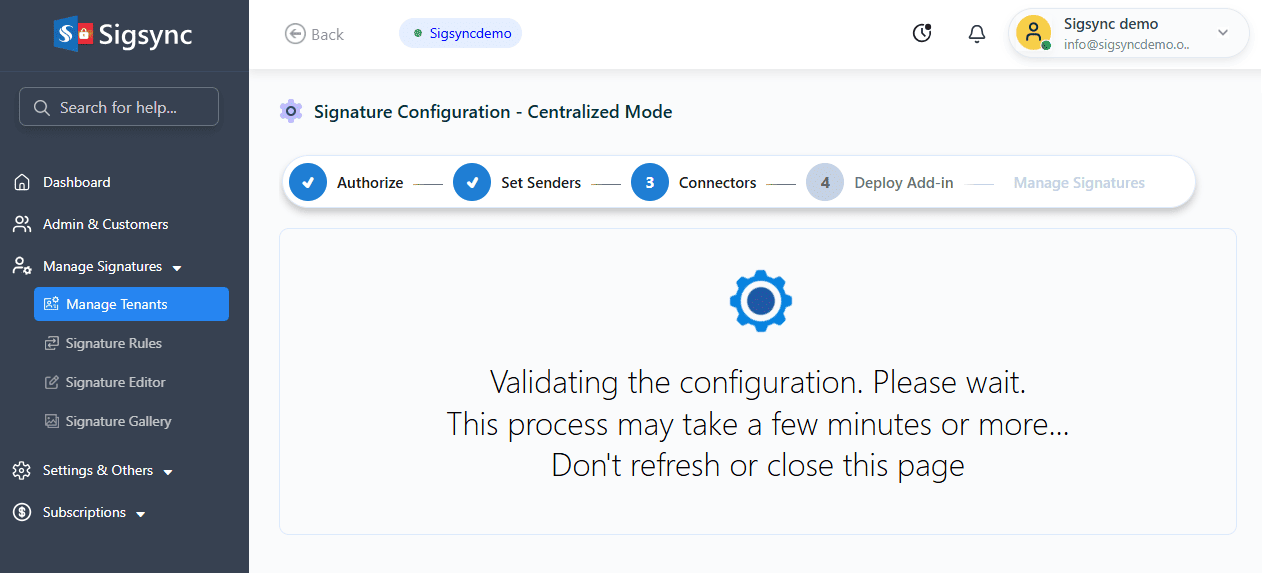
Once this is done, the Server Mode configuration is complete. Signatures will be applied in Server Mode, meaning they are added after the email is sent from your Outlook client. To have signatures appear automatically while composing emails in Outlook, proceed with the Sigsync Signatures Outlook Add-in deployment.
Add-in Deployment
- Click the ‘Deploy Add-in’ button and complete the deployment in the Office 365 Admin Center.
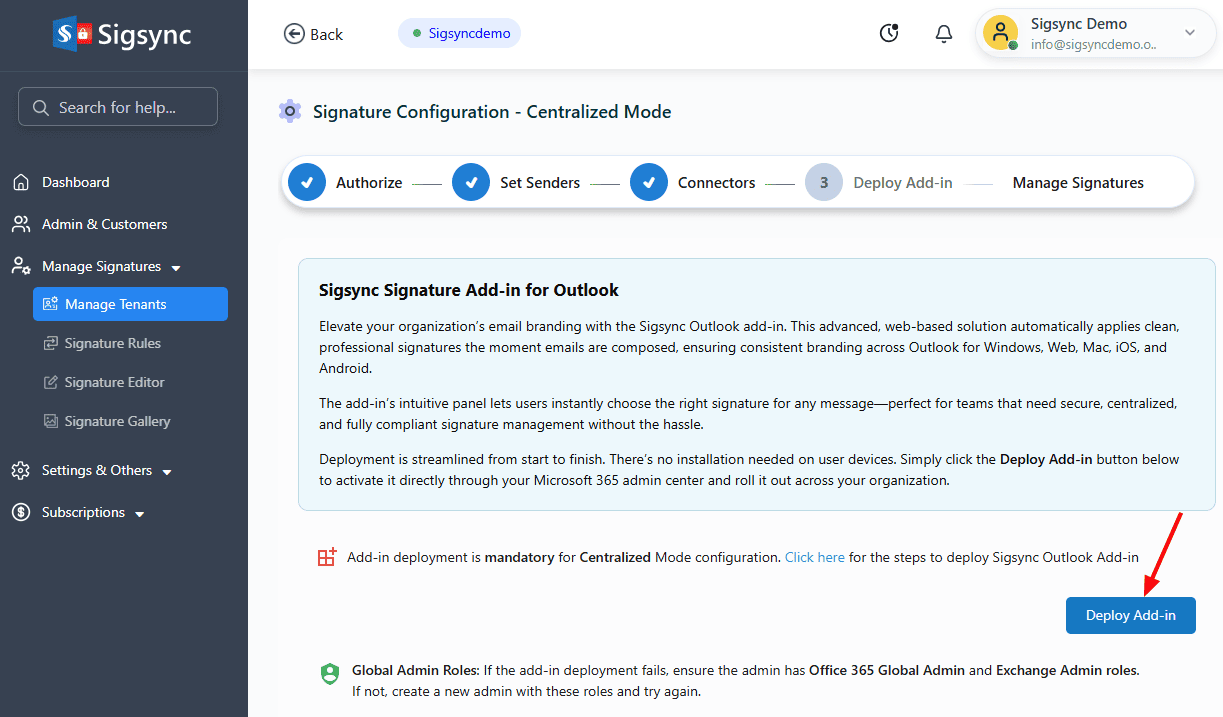
Note: To proceed with the Add-in deployment, you must be signed in with an account that has both Office 365 Global Admin and Exchange Admin roles. If these roles are not assigned, create a new admin account with the required permissions and try again.
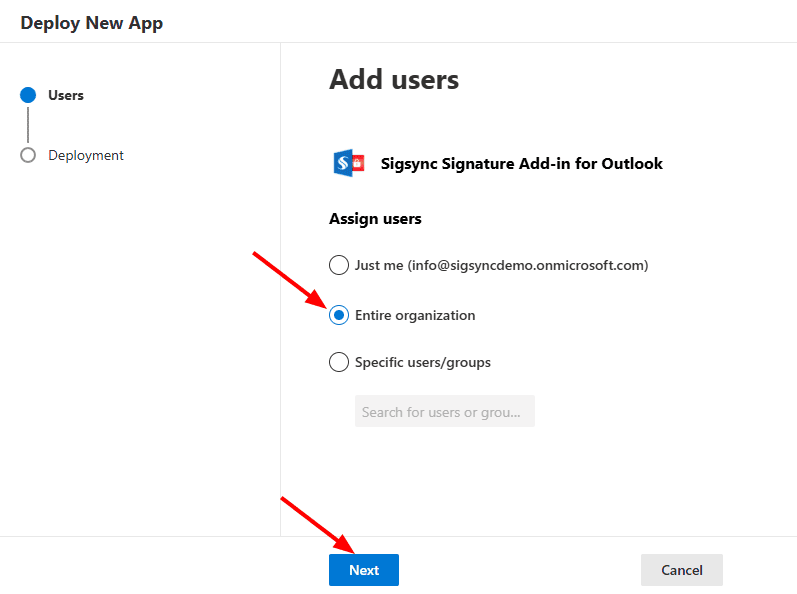
Assign Users:
- Entire Organization:
Select the option ‘Entire Organization’ to centrally deploy the add-in for all users
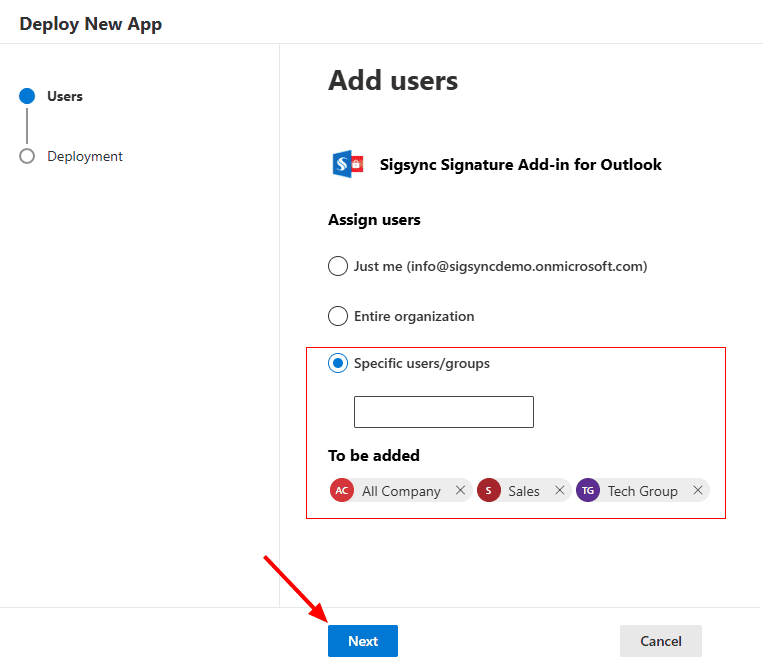
- Specific users / groups:
If you want to deploy the add-in for specific users or groups, select the ‘Specific users / groups’ option and select the required users / groups from the list.
- Click the ‘Accept Permissions’ button.
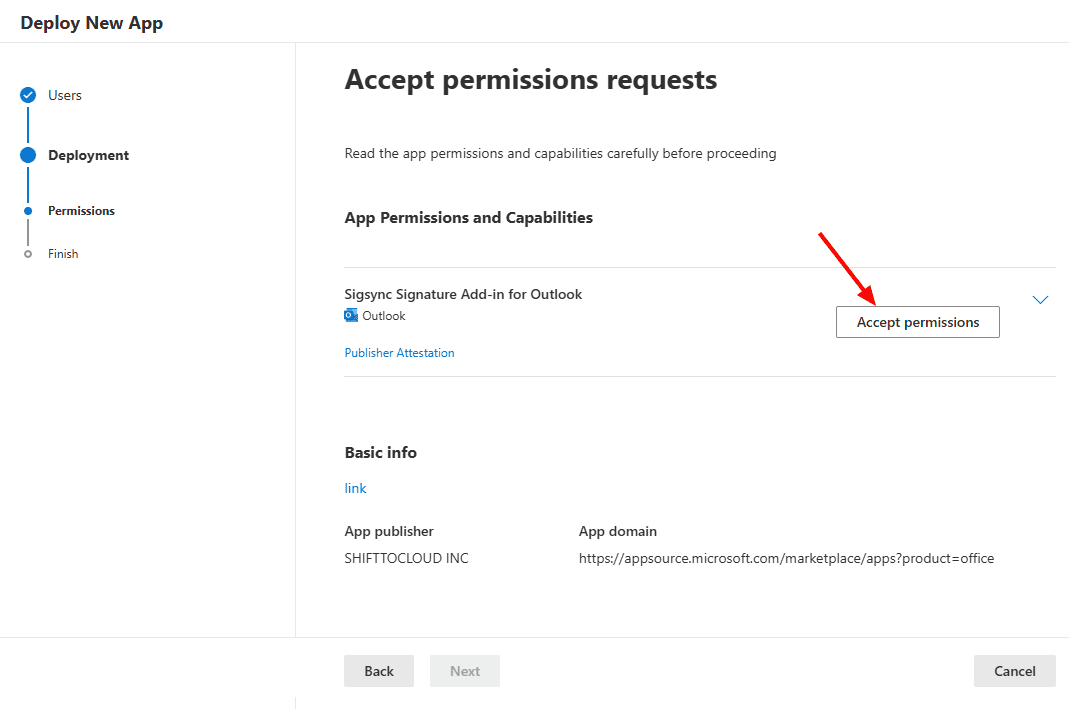
- Authenticate using your Office 365 Global admin account.
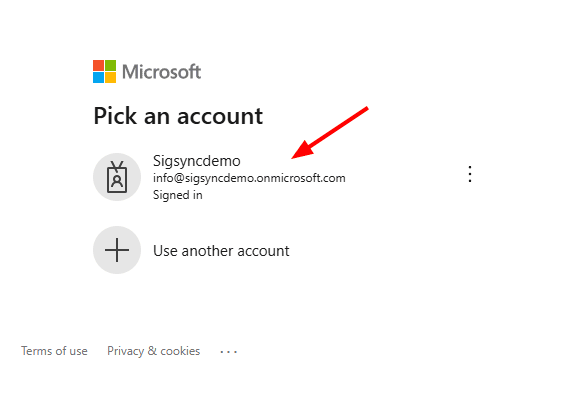
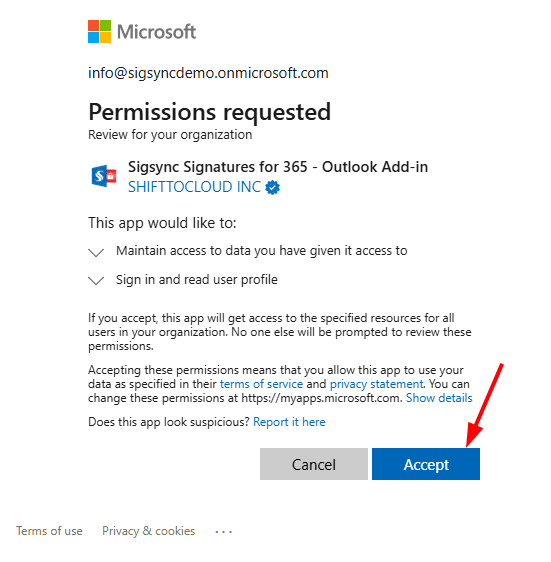
- Accept the required permissions.
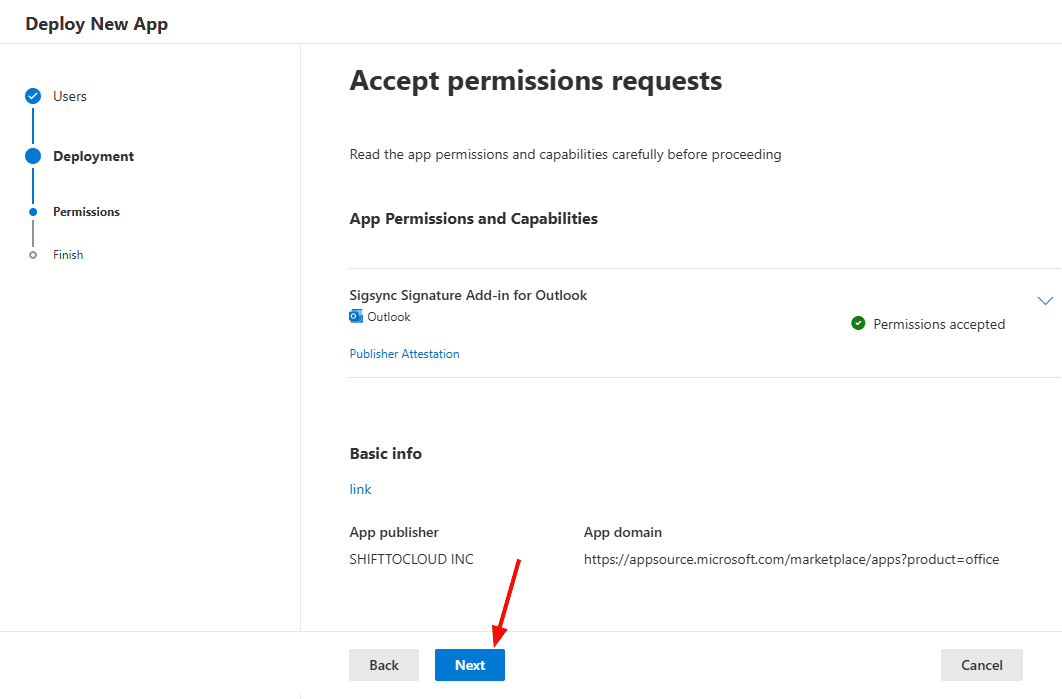
- Click the ‘Next’ button to proceed.
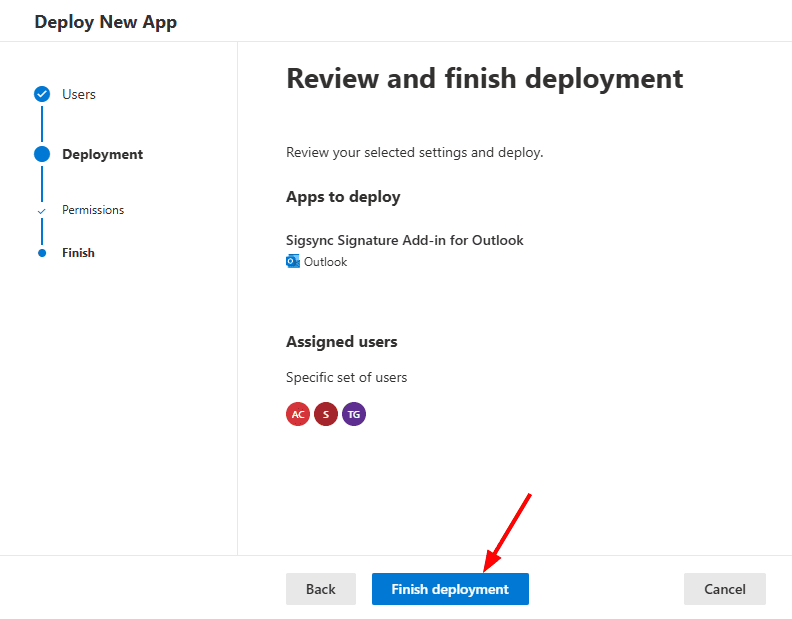
- Review the settings and click the ‘Finish deployment’ button.
- Once the deployment is complete, click ‘Done’.
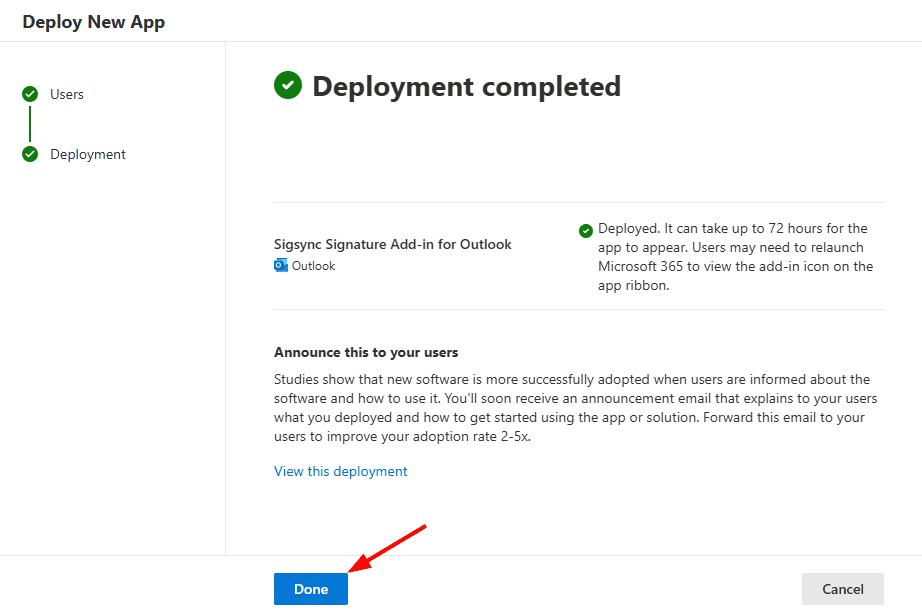
Note: Sigsync Signatures Outlook Add-in may take up to 6 hours to appear after deployment. In larger organizations, Microsoft’s update process can extend this to 72 hours. Once deployment is complete, the signature will be visible when composing an email.
See Also:
In this manual