

Signatures Based on the Selected ‘From’ Field
Sigsync Email Signature Service applies email signatures automatically in Outlook and Outlook Web Access (OWA) when the Sigsync Signatures Outlook Add-in is deployed. By default, the signature is applied based on the signed-in user.
In environments where users have ‘Send As’ permissions for shared mailboxes, aliases, or secondary email addresses, the default signature may not always match the selected sender address—especially when using Centralized or Client-side mode.
To address this, Sigsync provides an option to display and apply signatures based on the selected ‘From’ field during email composition.
How This Setting Works
When this option is enabled:
- Sigsync detects the email address selected in the From field.
- The signature is dynamically updated to match the selected sender address.
- The correct signature is applied automatically in Outlook and Outlook Web Access (OWA).
- This behavior applies primarily to Centralized and Client-side mode signatures.
As a result, users always send emails with the appropriate signature for the mailbox or address they are sending from.
Common Use Cases
This setting is especially useful when:
- Users send emails as shared mailboxes.
- Users send emails on behalf of another user.
- Multiple aliases or domains are used within the same tenant.
- Different signatures are required for different sender addresses.
- Centralized or Client-side signature mode is enabled.
Benefits
- Ensures the correct signature is applied for each sender address.
- Prevents mismatched or incorrect signatures.
- Supports complex mail-flow scenarios involving shared mailboxes.
Steps to Display Signatures Based on the ‘From’ Field
- Navigate to ‘Settings & Others’ > ‘Settings’ from the Sigsync Dashboard.
- Select the ‘Outlook Add-in’ tab.
- Check the option: Display the signatures in Outlook and Outlook Web Access (OWA) according to the selected ‘From’ field.
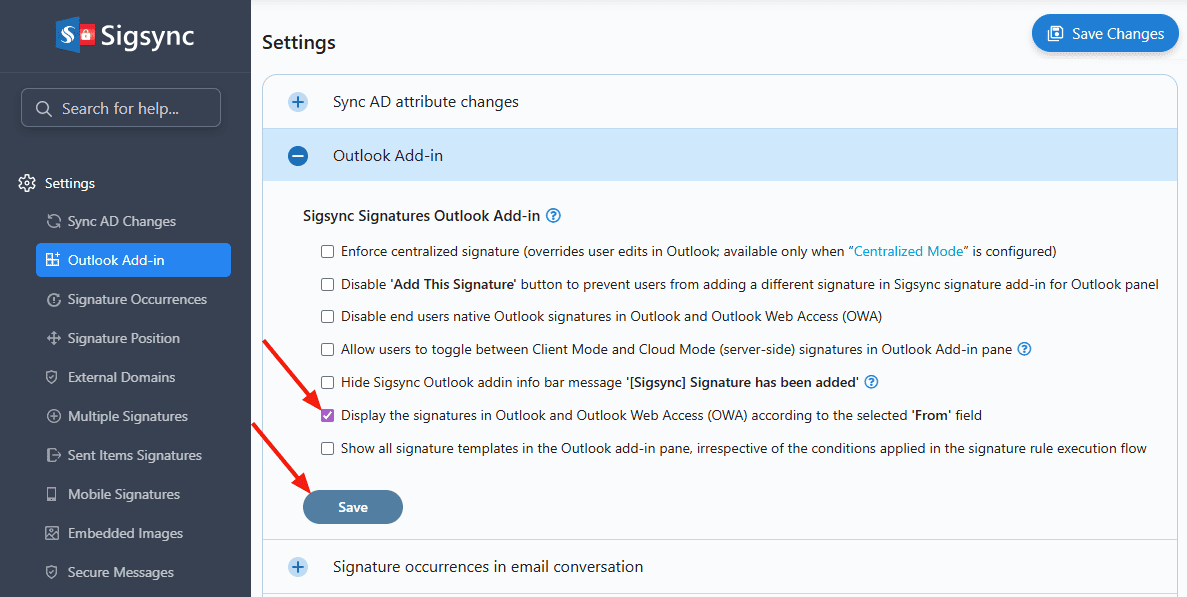
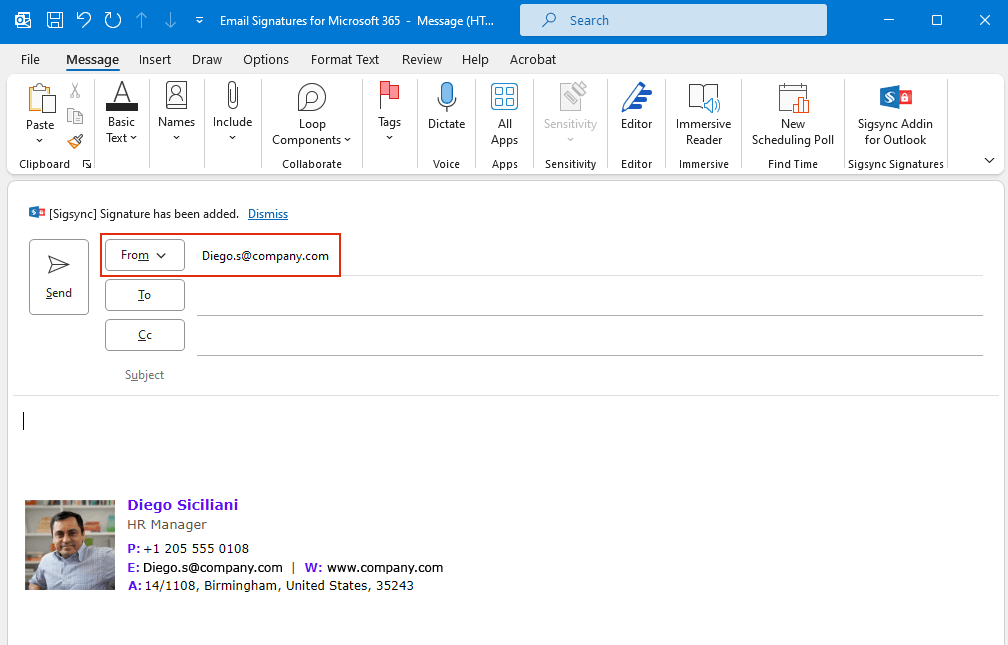
Once enabled, signatures will automatically update based on the selected sender address during email composition.
Example: If John P has ‘Send As’ permission for another user, Diego Siciliani, while composing an email John selects the ‘Diego Siciliani’ address in the From field, the Diego Siciliani signature is automatically applied to the email.
Useful Links:
In this manual