

Rotating Banner in Email Signature
Sigsync Office 365 Email Signature Software lets you set up multiple banner images in an email signature and rotate them automatically, instead of showing the same one every time. A banner that never changes eventually gets ignored, so you can upload several images into one banner slot and let Sigsync handle the rotation on its own. You choose how the rotation works. It can pick a random banner each time a signature is sent, or keep one banner in place for an hour or a full day before switching to the next. It can also rotate sequentially, cycling through each banner in turn on an hourly or daily basis. Either way, promoting a new campaign, event, or seasonal offer no longer means editing the signature by hand every time something changes.
Adding banners is just as simple. You can upload images directly from your device or link to ones already hosted online. Each banner can also carry its own clickable link, so recipients land straight on the page it's meant to point to, whether that's a product page, an event page, or a live offer.
Advantages of Rotating Banner
- Display multiple promotional messages without creating separate signatures, saving time and effort in signature management
- Increase campaign visibility and engagement by exposing recipients to various products, events, or announcements over time
- Keep email communications fresh and dynamic, preventing recipient fatigue from repetitive static banners
- Run multiple campaigns simultaneously and switch between them seamlessly without manual updates
- Respond easily to seasonal changes, promotional periods, or urgent announcements
- Measure campaign effectiveness by allowing different promotional content to reach the same audience in a controlled manner
Image Rotation Style
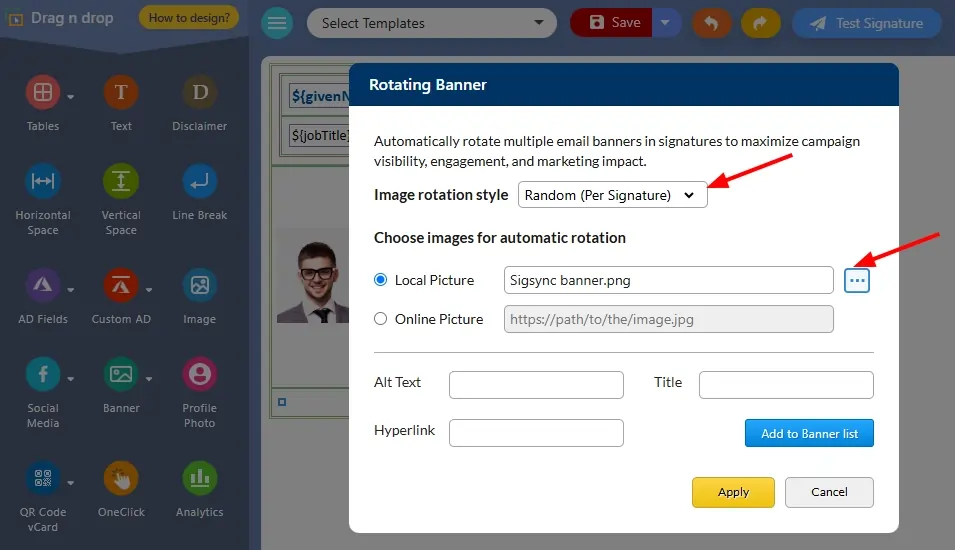
Sigsync provides multiple image rotation methods, allowing you to control how banner images are displayed in email signatures. Depending on your marketing or communication requirements, you can choose to display banners randomly or sequentially at different intervals.
| Random (Per Signature) | A random banner image is selected each time an email signature is generated. This option ensures that recipients may see different banner images even when emails are sent within a short period. |
| Random (Hourly) | A banner image is randomly selected and displayed in all email signatures generated during the current hour. At the beginning of the next hour, Sigsync automatically selects another random banner image. |
| Random (Daily) | A random banner image is displayed in all email signatures for an entire day. A different banner is automatically selected at the start of the next day. |
| Sequential (Hourly) | Banner images are displayed one after another in the order they were added. The displayed image changes automatically every hour, ensuring that all uploaded banners are shown in sequence. |
| Sequential (Daily) | Banner images rotate sequentially based on the order in which they were added, with the displayed image changing once every day. This option is useful when you want each banner to receive equal visibility over time. |
Steps to Add a Rotating Banner to an Email Signature
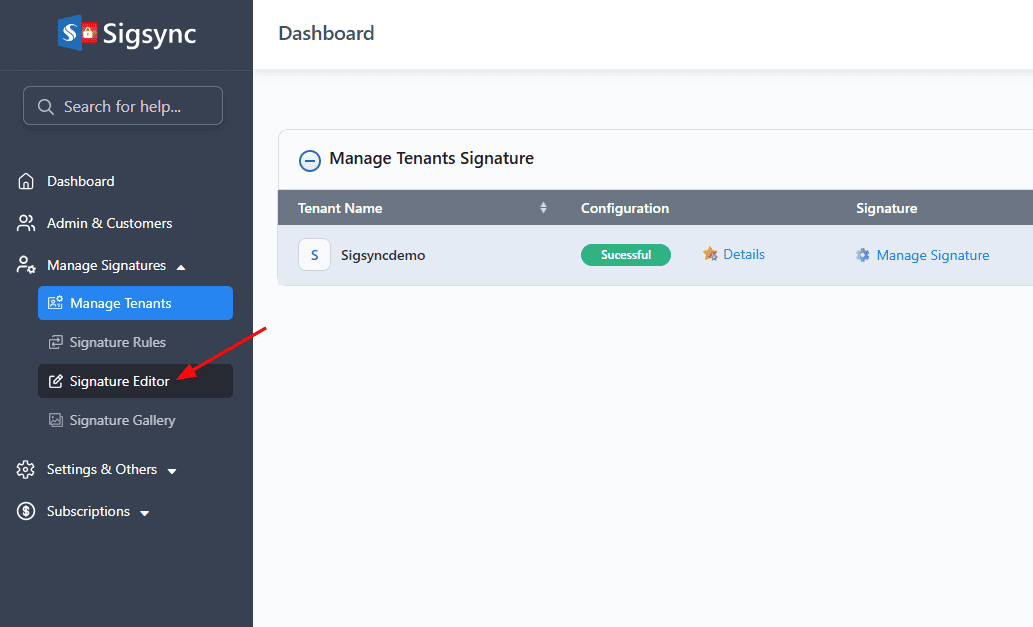
- Login to the Sigsync Dashboard.
- Navigate to ‘Manage Signature’ and select ‘Signature Editor’.
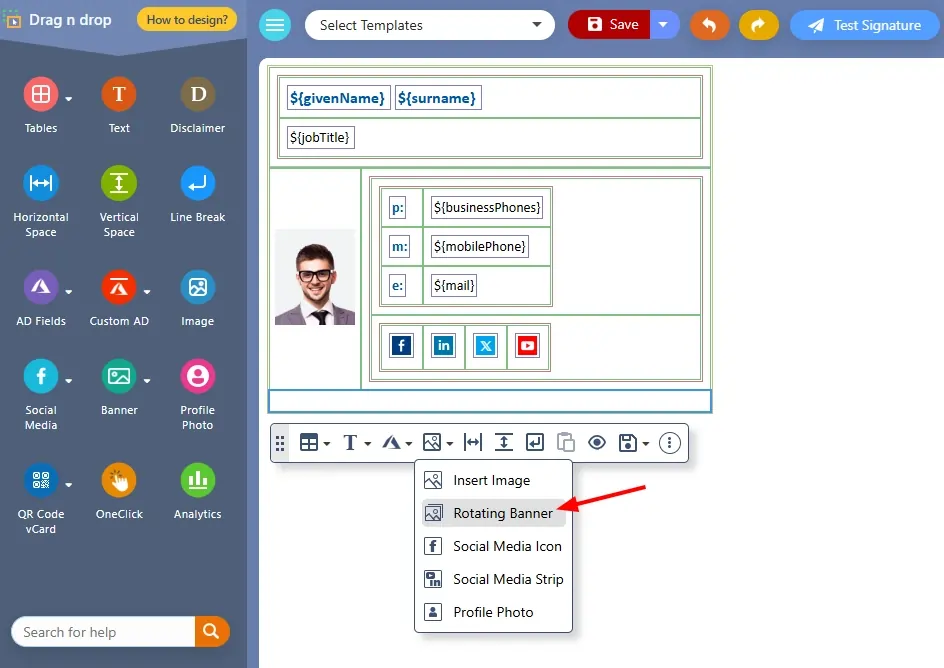
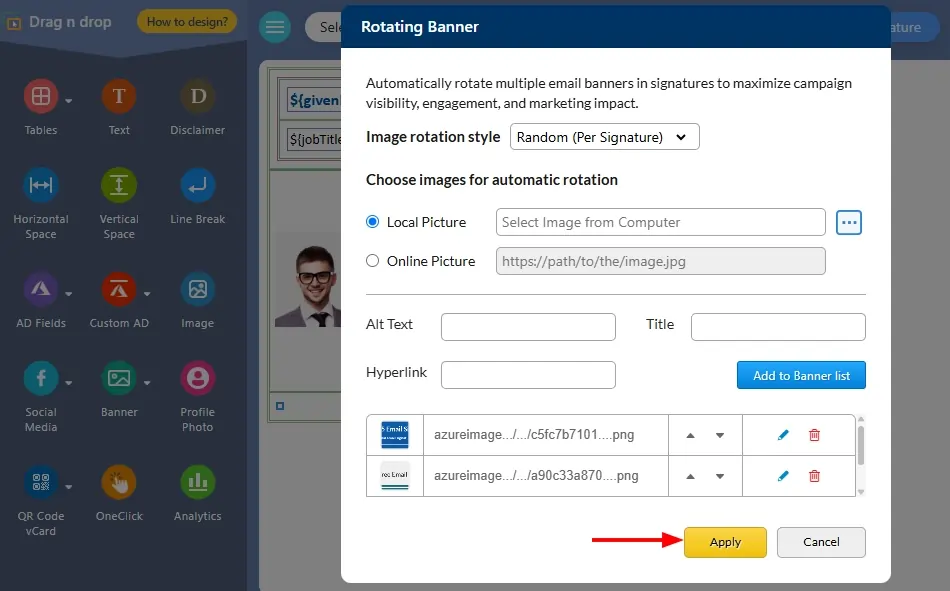
- Select the table cell, then click ‘Insert Image’ → ‘Rotating Banner’ from the toolbar.
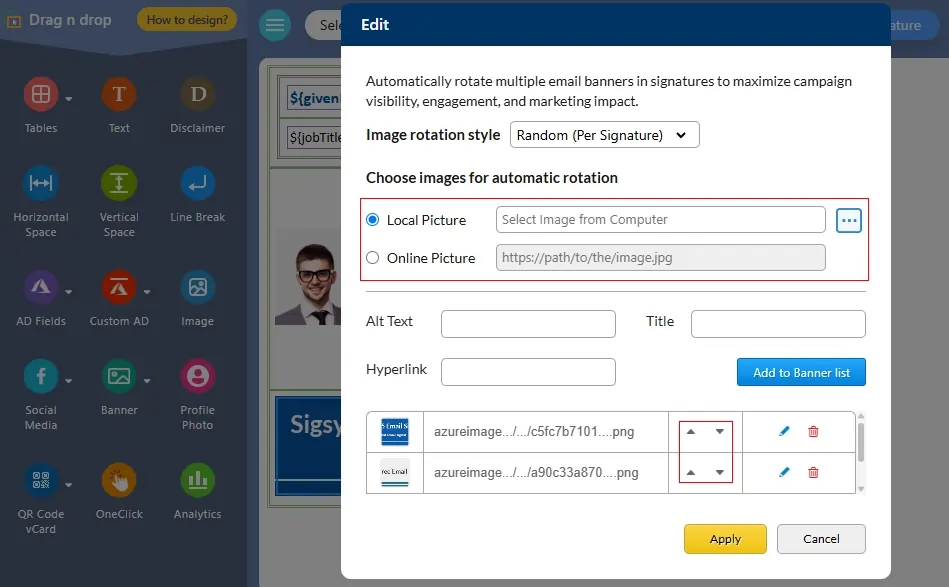
- Now, choose the image rotation style and select the image from your local drive, or you can use an online picture
- Add the required Alt Text, Title, and Hyperlink for the image, and then click the ‘Add to Banner list’ button
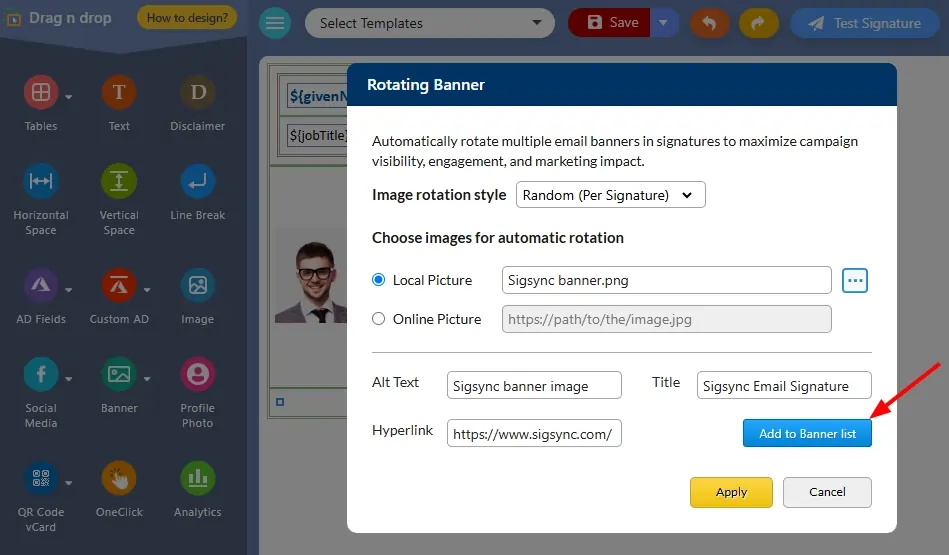
- You can add multiple images based on your requirement.
Note: Image size should be less than 300 KB, and the sum of all your image sizes must be under 2MB.
- Click the ‘Apply’ button to save all the changes.
Modify an Existing Rotating Banner
- Navigate to the ‘Signature Editor’ and select the template you want to modify.
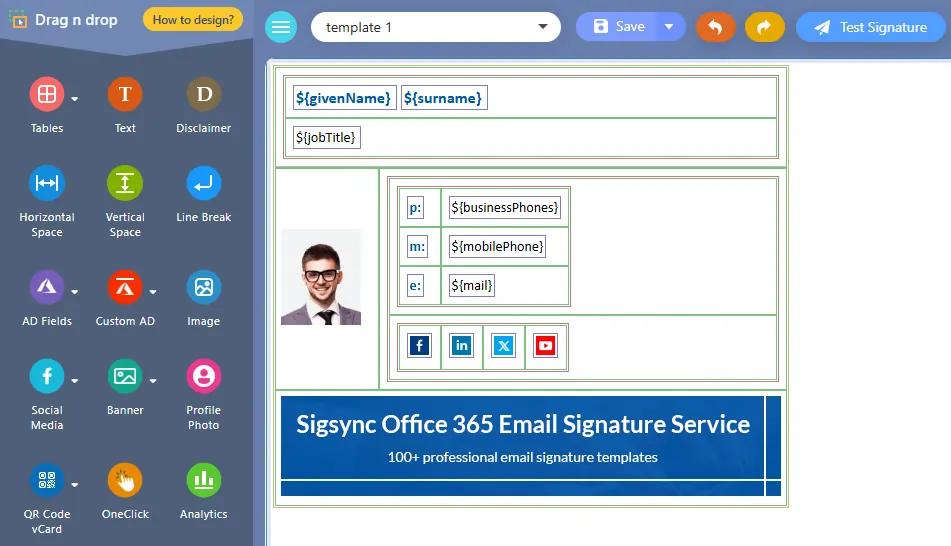
- Select the rotating banner image and then click on the edit icon from the toolbar.
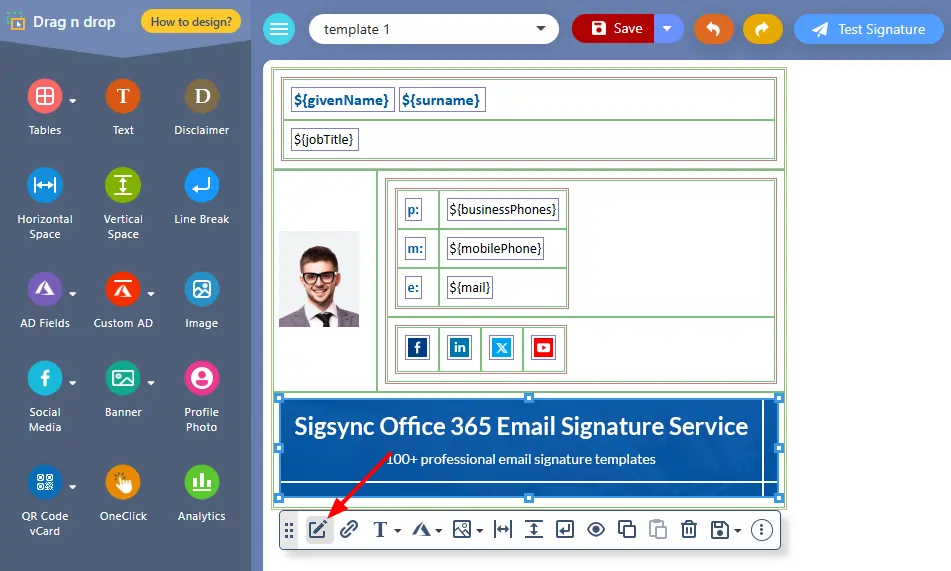
- Click the edit icon next to the image you want to modify.
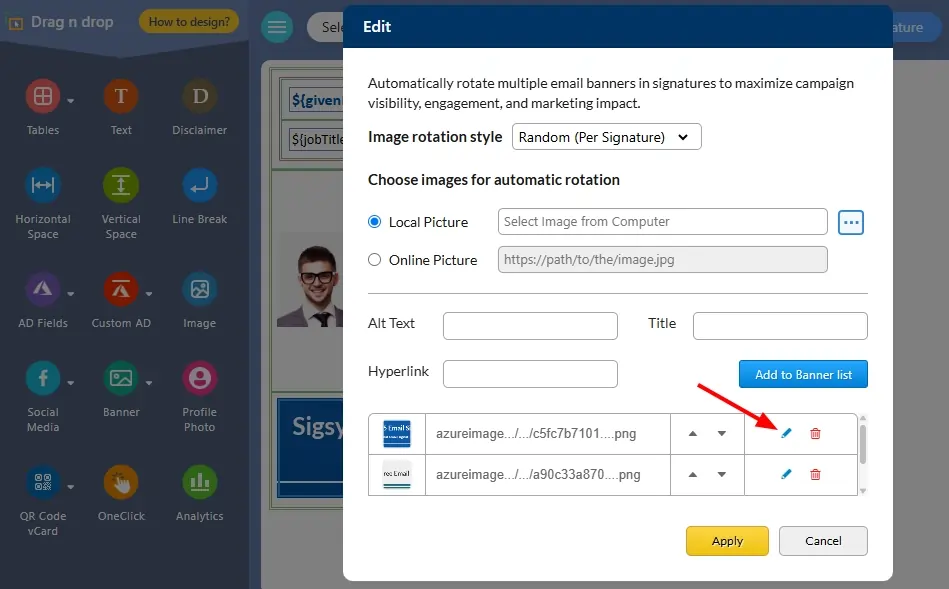
- Now, you can update the hyperlink, image title, alt tag, and the image itself. Once you've made your changes, click the ‘Update’ button to save them.
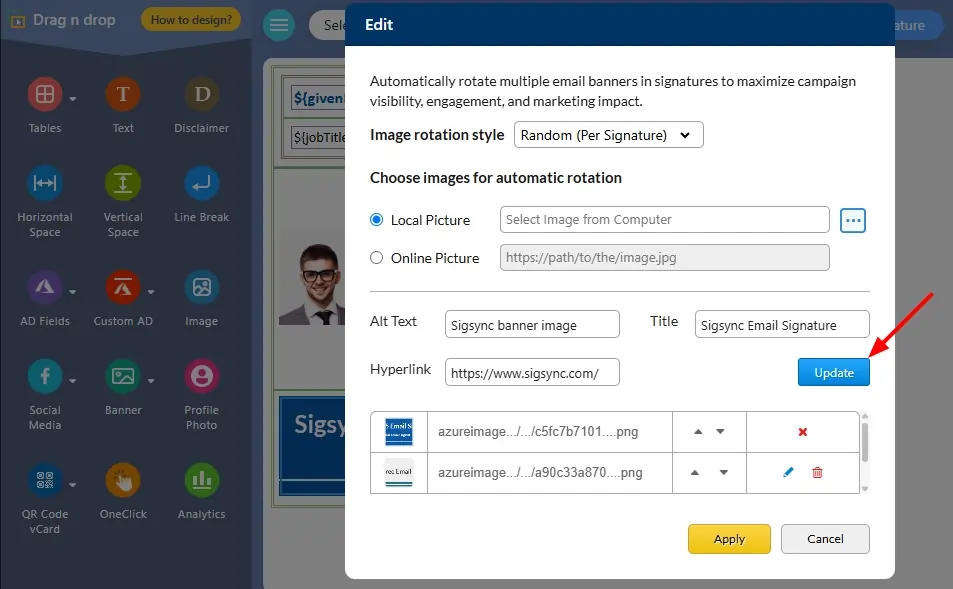
- You can also move images up or down to change their order in the sequence. Additionally, you can add new banner images as well.
- Click the ‘Apply’ button to save all changes.
Useful Links:
In this manual