

Show All Signature Templates
Sigsync Office 365 Email Signature Software provides centralized management and control of email signatures across the organization. In the Sigsync settings, administrators can enable the option ‘Show all signature templates in the Outlook add-in pane, irrespective of the conditions applied in the signature rule execution flow.’
When this option is enabled, all email signature templates are displayed in the Sigsync Signatures Outlook Add-in pane in Outlook, even when specific signature rules and conditions are applied. By default, the signature associated with the highest-priority rule is automatically added to the email.
The remaining signature templates continue to appear in the add-in pane for reference. Users can manually apply a different signature by clicking ‘Add This Signature Button’ for the required template, while rule priority continues to determine which signature is applied by default.
Steps to Enable the Show All Signature Templates Option
- Login to the Sigsync Dashboard.
- Go to ‘Settings & Others’, then select the ‘Settings’ tab.
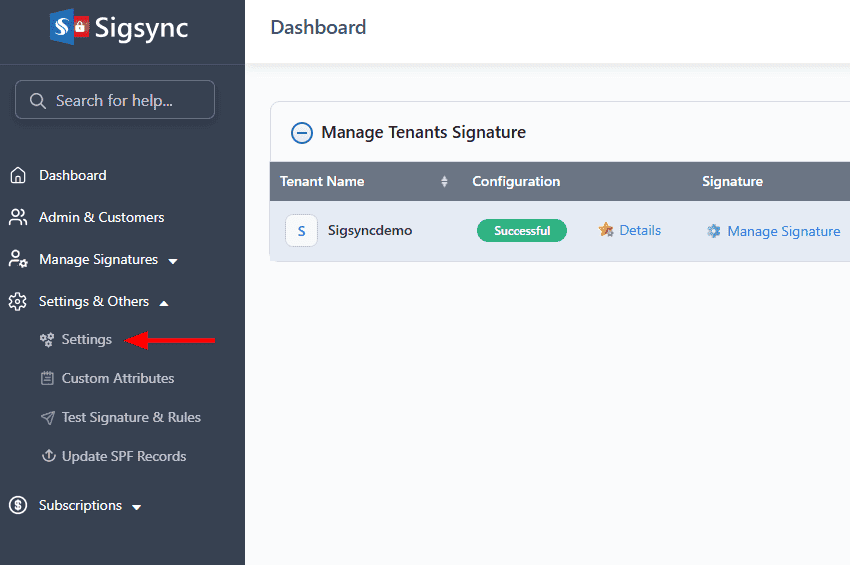
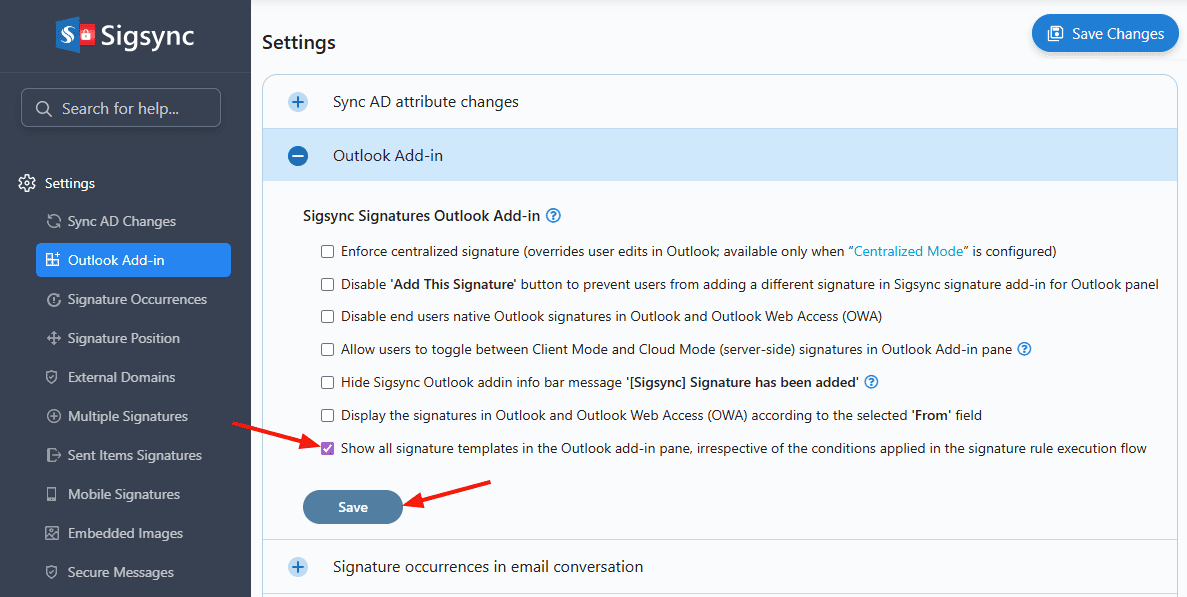
- Select the ‘Outlook Add-in’ tab and check the option: ‘Show all signature templates in the Outlook add-in pane, irrespective of the conditions applied in the signature rule execution flow’.
- Click the ‘Save’ button to apply the changes.
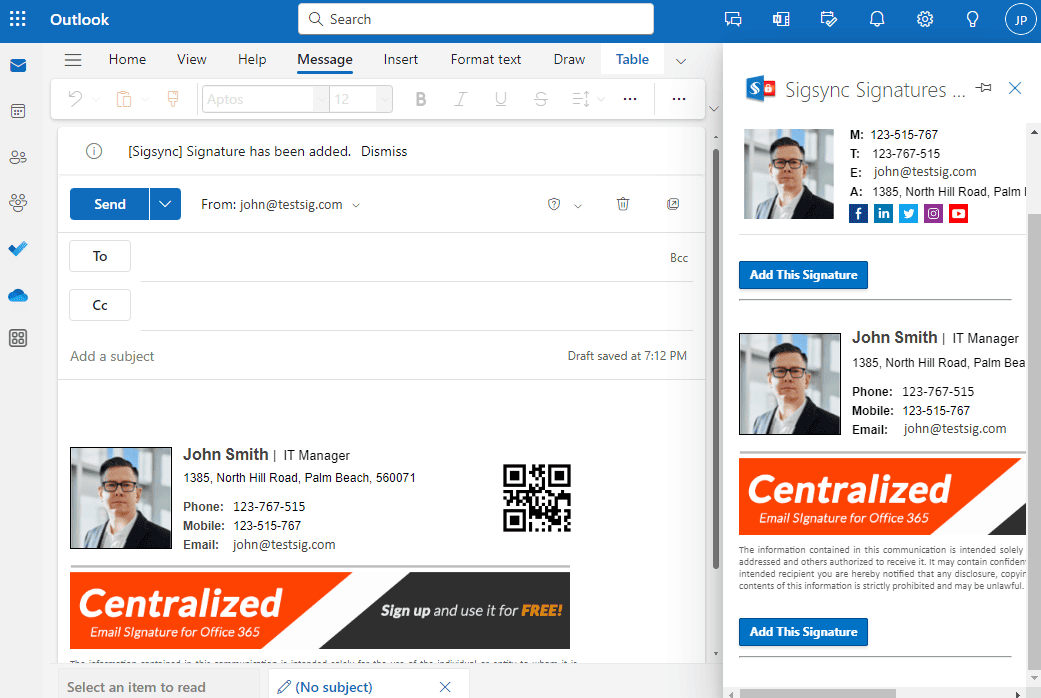
Now, open Outlook and compose a new email. Click the ‘Sigsync Signatures Add-in for Outlook’ to open the add-in pane, where all the configured signature templates are listed. The highest-priority rule signature is added by default, and other templates can be manually applied by clicking the Add this signature button.
Useful Links:
In this manual