

Prevent Users from Manually Adding Signatures
Sigsync Office 365 Email Signature Software automatically inserts email signatures in Outlook once the Sigsync Signatures Outlook Add-in is deployed. Signatures are applied during email composition based on centrally configured rules, without requiring any action from end users.
By default, when users open the Sigsync Signatures Outlook Add-in pane, they can manually insert a signature by clicking the Add This Signature button. This allows users to apply a different signature than the one automatically assigned.
To maintain consistent and controlled signature usage, administrators can disable manual signature insertion by enabling this option in Sigsync Settings.
How This Setting Works
When the option to prevent manual signature addition is enabled:
- The Add This Signature button is disabled in the Sigsync Outlook add-in pane.
- Users cannot manually insert or switch between signatures.
- Signatures are applied automatically based on configured signature rules.
- End users are prevented from overriding the assigned signature.
Why Enable This Setting
Enable this option to:
- Enforce standardized email signatures.
- Prevent users from applying incorrect or unauthorized signatures.
- Reduce user-level signature changes and support overhead.
Steps to Prevent Users from Manually Adding Signatures
- Navigate to ‘Settings & Others’ > ‘Settings’ from the Sigsync Dashboard.
- Select the ‘Outlook Add-in’ tab.
- Check the option: Disable ‘Add This Signature’ button to prevent users from adding a different signature in the Sigsync signature add-in for Outlook panel.
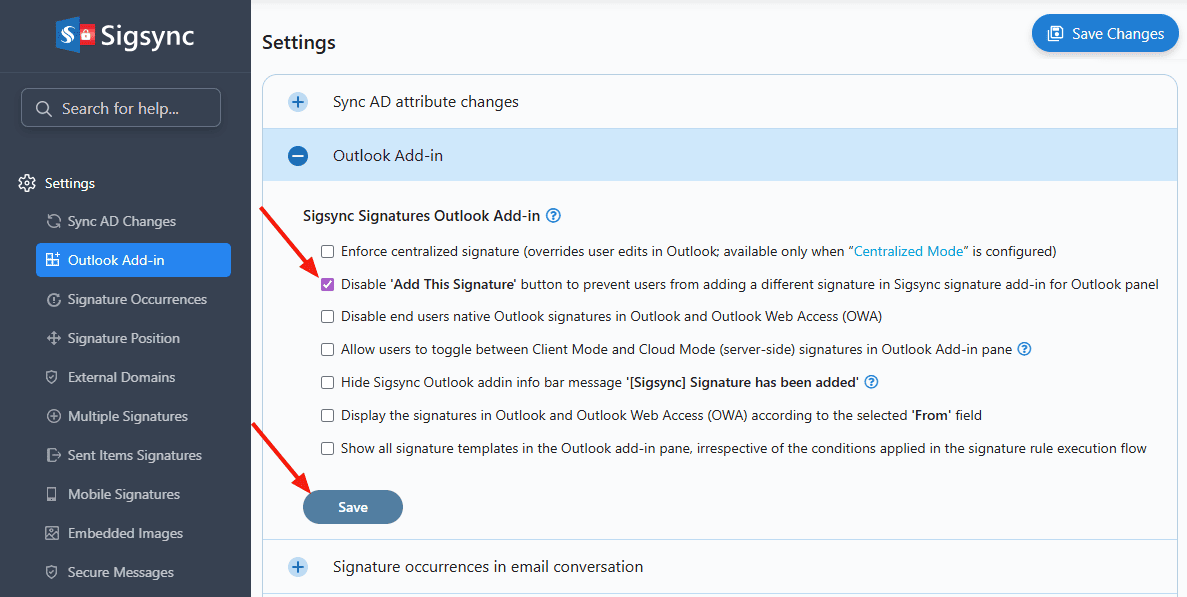
Once enabled, users will no longer be able to manually add signatures from the Sigsync Outlook add-in pane.
User Impact
- Signatures continue to be applied automatically during email composition.
- Users can view the applied signature but cannot manually change it.
- No additional action is required from end users.
Useful Links: