
-
- Reseller
-
Products
Tailored Product Demo for Your Exact Needs
Explore how our solution delivers efficiency, control, and scalability.
Request a Demo
-
Solutions
Tailored Product Demo for Your Exact Needs
Explore how our solution delivers efficiency, control, and scalability.
Request a Demo
- Dashboard
- Features
- Pricing
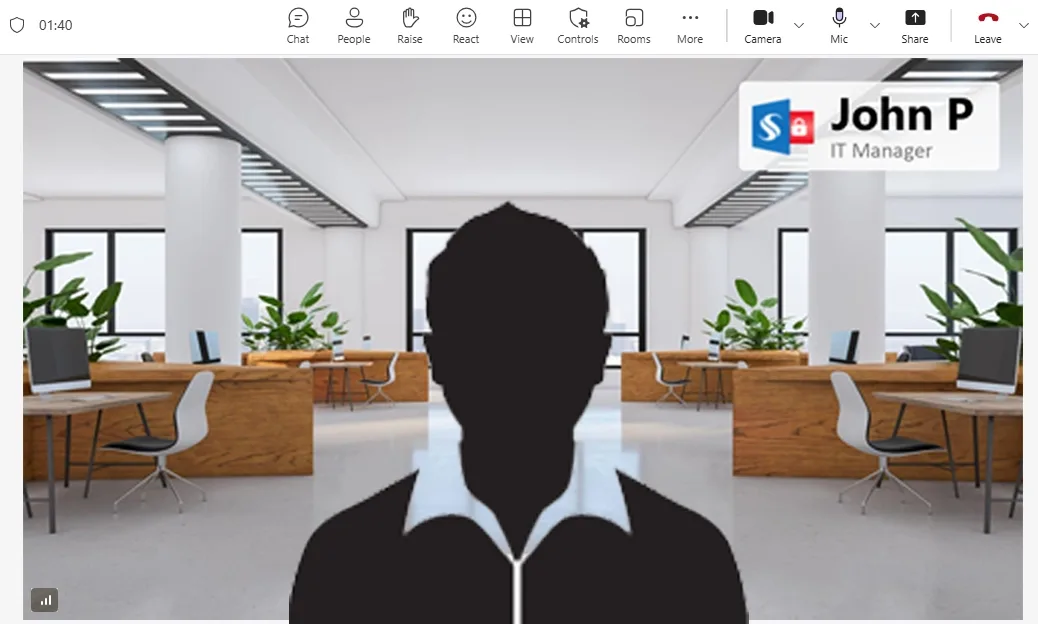
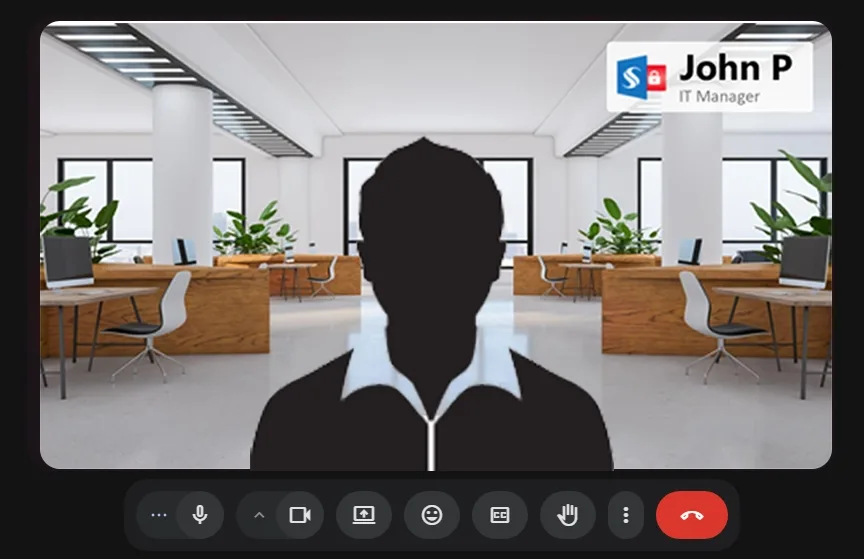
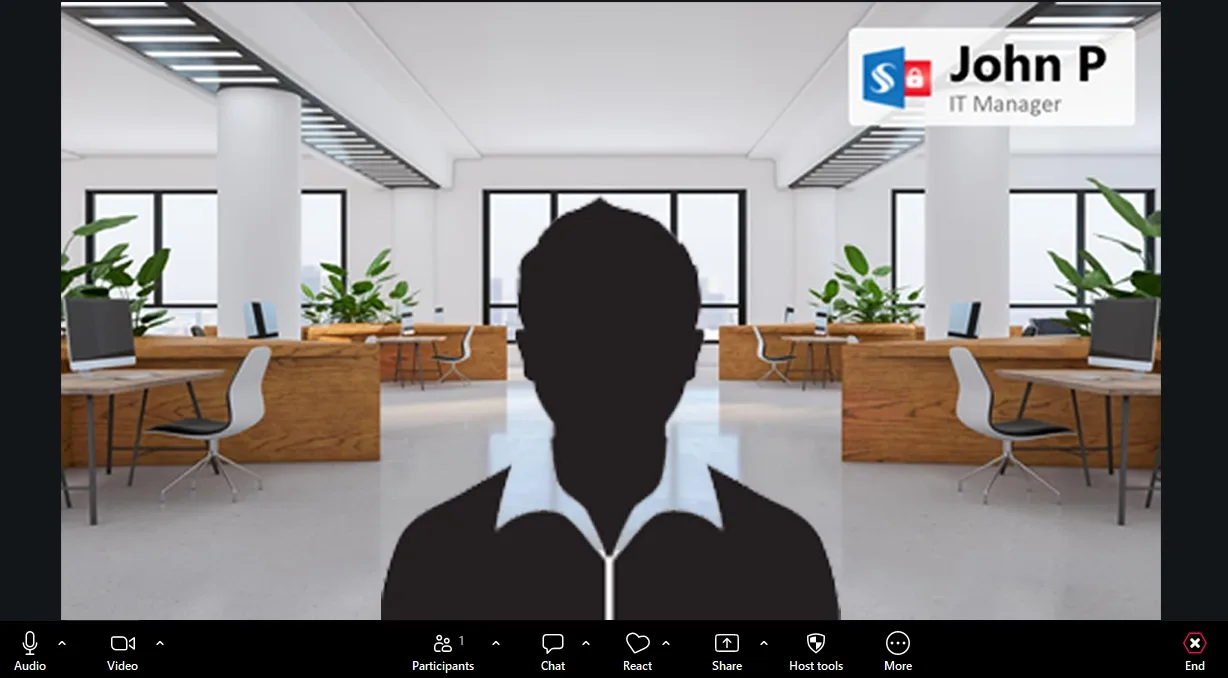
Apply Meeting Branding on Teams, Zoom and Google Meet
Once your Meeting Branding background is downloaded from Sigsync, setting it up on Microsoft Teams, Google Meet, or Zoom only takes a minute, and it stays applied for your future meetings. If you haven't created a theme yet, or need to download your background first, see How to Set Up Meeting Branding in Sigsync.
Set Your Teams Meeting Background
- Open Microsoft Teams and create or join a meeting.
- Under video options, select Effects and settings, then More video effects and settings.
- In the Backgrounds section, select Add New.
- Locate the branded background file you downloaded and select Open. This adds it to your list of Teams backgrounds.
- Select the uploaded image and click Apply.
Set Your Google Meeting Background
- Open Google Meet and start or join a meeting.
- Select Backgrounds and effects, either from the icon bar or the ellipsis menu, to open the backgrounds & effects panel.
- Under the Blur and personal section, select Add your own personal background.
- Locate the branded background file you downloaded and select Open. This adds it to your list of Google Meet backgrounds, ready to use anytime.
Set Your Zoom Meeting Background
- Launch the Zoom application and start or join a meeting.
- From the video section, click Video & Settings directly. Or, select the ellipsis icon, then go to Settings > Video & Settings.
- Navigate to Virtual Background and, if you have a green screen set up, turn on the I have a green screen toggle for a cleaner result.
Note: A green screen gives you the cleanest result for a virtual background. Without one, Zoom uses your camera to detect and blur out your surroundings instead, which can make the edges of your branded background look soft or slightly cut off, especially with uneven lighting or a busy room behind you.
- Click the Add Image icon.
- Locate the branded background file you downloaded and select Open. This adds it to your list of Zoom virtual backgrounds, ready to use anytime.
In this manual